" height="1.90314px" id="wtDTm6bEW" transform="translate(26.225 0)" width="2.4723000000000006px"/><path d="M 0.557 0 L 1.438 0 C 1.746 0 1.995 0.25 1.995 0.559 L 1.995 1.344 C 1.995 1.653 1.746 1.903 1.438 1.903 L 0.557 1.903 C 0.25 1.903 0 1.653 0 1.344 L 0 0.559 C 0 0.25 0.25 0 0.557 0 Z" fill="rgb(29, 28, 27)" height="1.9031500000000001px" id="GnmDnNra_" transform="translate(36.408 2.728)" width="1.9953000000000003px"/><path d="M 6.224 0 L 0.558 0 C 0.25 0 0 0.25 0 0.559 L 0 1.344 C 0 1.653 0.25 1.903 0.558 1.903 L 6.224 1.903 C 6.531 1.903 6.781 1.653 6.781 1.344 L 6.781 0.559 C 6.781 0.25 6.531 0 6.224 0 Z" fill="rgb(29, 28, 27)" height="1.9031500000000001px" id="hKTQ3dbw4" transform="translate(34.261 5.456)" width="6.781100000000002px"/><path d="M 6.955 0 L 0.558 0 C 0.25 0 0 0.25 0 0.559 L 0 1.344 C 0 1.653 0.25 1.903 0.558 1.903 L 6.955 1.903 C 7.263 1.903 7.513 1.653 7.513 1.344 L 7.513 0.559 C 7.513 0.25 7.263 0 6.955 0 Z" fill="rgb(29, 28, 27)" height="1.9031500000000001px" id="G1Zzk9CUU" transform="translate(28.298 8.243)" width="7.513100000000001px"/><path d="M 7.123 0 L 0.558 0 C 0.25 0 0 0.25 0 0.559 L 0 1.344 C 0 1.653 0.25 1.903 0.558 1.903 L 7.123 1.903 C 7.431 1.903 7.681 1.653 7.681 1.344 L 7.681 0.559 C 7.681 0.25 7.431 0 7.123 0 Z" fill="rgb(29, 28, 27)" height="1.9030999999999985px" id="fm7cHxIfJ" transform="translate(0 10.972)" width="7.68067px"/><path d="M 13.447 0 L 0.558 0 C 0.25 0 0 0.25 0 0.559 L 0 1.344 C 0 1.653 0.25 1.903 0.558 1.903 L 13.447 1.903 C 13.755 1.903 14.004 1.653 14.004 1.344 L 14.004 0.559 C 14.004 0.25 13.755 0 13.447 0 Z" fill="rgb(29, 28, 27)" height="1.9030999999999985px" id="LowSwDrtg" transform="translate(9.552 10.972)" width="14.0044px"/><path d="M 0.558 0 L 8.212 0 C 8.52 0 8.77 0.25 8.77 0.559 L 8.77 1.344 C 8.77 1.653 8.52 1.903 8.212 1.903 L 0.558 1.903 C 0.25 1.903 0 1.653 0 1.344 L 0 0.559 C 0 0.25 0.25 0 0.558 0 Z" fill="rgb(29, 28, 27)" height="1.9030999999999985px" id="xRiKc2od7" transform="translate(27.041 10.972)" width="8.769900000000003px"/><path d="M 0.557 0 L 5.4 0 C 5.708 0 5.958 0.25 5.958 0.559 L 5.958 1.344 C 5.958 1.653 5.708 1.903 5.4 1.903 L 0.557 1.903 C 0.25 1.903 0 1.653 0 1.344 L 0 0.559 C 0 0.25 0.25 0 0.557 0 Z" fill="rgb(29, 28, 27)" height="1.9031500000000001px" id="JWdNVicde" transform="translate(36.796 8.243)" width="5.957599999999999px"/><path d="M 1.438 0 L 0.558 0 C 0.25 0 0 0.25 0 0.559 L 0 1.344 C 0 1.653 0.25 1.903 0.558 1.903 L 1.438 1.903 C 1.746 1.903 1.995 1.653 1.995 1.344 L 1.995 0.559 C 1.995 0.25 1.746 0 1.438 0 Z" fill="rgb(29, 28, 27)" height="1.9031500000000001px" id="RfFYVCT_T" transform="translate(28.717 5.456)" width="1.9953000000000003px"/><path d="M 0.558 0 L 2.895 0 C 3.203 0 3.453 0.25 3.453 0.559 L 3.453 1.406 C 3.453 1.714 3.203 1.964 2.895 1.964 L 0.558 1.964 C 0.25 1.964 0 1.714 0 1.406 L 0 0.559 C 0 0.25 0.25 0 0.558 0 Z" fill="rgb(29, 28, 27)" height="1.964299999999998px" id="dngJ6MU2p" transform="translate(16.183 24.582)" width="3.4525000000000006px"/><path d="M 1.706 0 L 0.558 0 C 0.25 0 0 0.25 0 0.559 L 0 1.406 C 0 1.714 0.25 1.964 0.558 1.964 L 1.706 1.964 C 2.014 1.964 2.263 1.714 2.263 1.406 L 2.263 0.559 C 2.263 0.25 2.014 0 1.706 0 Z" fill="rgb(29, 28, 27)" height="1.964299999999998px" id="N_fstvKmR" transform="translate(22.18 24.582)" width="2.2631999999999977px"/><path d="M 0.558 0 L 5.544 0 C 5.852 0 6.101 0.25 6.101 0.559 L 6.101 1.406 C 6.101 1.714 5.852 1.964 5.544 1.964 L 0.558 1.964 C 0.25 1.964 0 1.714 0 1.406 L 0 0.559 C 0 0.25 0.25 0 0.558 0 Z" fill="rgb(29, 28, 27)" height="1.964299999999998px" id="t55XLYcgb" transform="translate(25.486 24.582)" width="6.101399999999998px"/><path d="M 1.976 0 L 0.558 0 C 0.25 0 0 0.25 0 0.559 L 0 1.406 C 0 1.714 0.25 1.964 0.558 1.964 L 1.976 1.964 C 2.284 1.964 2.533 1.714 2.533 1.406 L 2.533 0.559 C 2.533 0.25 2.284 0 1.976 0 Z" fill="rgb(29, 28, 27)" height="1.964299999999998px" id="ZrEKTVTAe" transform="translate(28.542 21.854)" width="2.5334000000000003px"/><path d="M 0.557 0 L 1.438 0 C 1.746 0 1.995 0.25 1.995 0.559 L 1.995 1.406 C 1.995 1.714 1.746 1.964 1.438 1.964 L 0.557 1.964 C 0.25 1.964 0 1.714 0 1.406 L 0 0.559 C 0 0.25 0.25 0 0.557 0 Z" fill="rgb(29, 28, 27)" height="1.964299999999998px" id="Z0fPTp9aR" transform="translate(11.425 24.582)" width="1.9953000000000003px"/><path d="M 0 0.559 C 0 0.251 0.251 0 0.558 0 L 1.438 0 C 1.745 0 1.995 0.251 1.995 0.559 L 1.995 1.405 C 1.995 1.713 1.745 1.964 1.438 1.964 L 0.558 1.964 C 0.251 1.964 0 1.713 0 1.405 Z" fill="rgb(29, 28, 27)" height="1.964299999999998px" id="Tj_PDHFDh" transform="translate(20.635 27.308)" width="1.9954px"/><path d="M 0.557 0 L 1.342 0 C 1.65 0 1.899 0.25 1.899 0.559 L 1.899 1.406 C 1.899 1.714 1.65 1.964 1.342 1.964 L 0.557 1.964 C 0.25 1.964 0 1.714 0 1.406 L 0 0.559 C 0 0.25 0.25 0 0.557 0 Z" fill="rgb(29, 28, 27)" height="1.9643000000000015px" id="AYq9dXkKz" transform="translate(18.686 30.036)" width="1.8994px"/><path d="M 0.558 0 L 5.768 0 C 6.076 0 6.326 0.25 6.326 0.559 L 6.326 1.344 C 6.326 1.653 6.076 1.903 5.768 1.903 L 0.558 1.903 C 0.25 1.903 0 1.653 0 1.344 L 0 0.559 C 0 0.25 0.25 0 0.558 0 Z" fill="rgb(29, 28, 27)" height="1.9031500000000001px" id="rspevfJcx" transform="translate(12.157 8.243)" width="6.325900000000001px"/><path d="M 3.285 0 L 0.558 0 C 0.25 0 0 0.25 0 0.559 L 0 1.344 C 0 1.653 0.25 1.903 0.558 1.903 L 3.285 1.903 C 3.593 1.903 3.842 1.653 3.842 1.344 L 3.842 0.559 C 3.842 0.25 3.593 0 3.285 0 Z" fill="rgb(29, 28, 27)" height="1.9031500000000001px" id="XRUAhGnph" transform="translate(23.887 2.728)" width="3.8424000000000014px"/><path d="M 0.558 0 L 5.644 0 C 5.952 0 6.202 0.25 6.202 0.559 L 6.202 1.344 C 6.202 1.653 5.952 1.903 5.644 1.903 L 0.558 1.903 C 0.25 1.903 0 1.653 0 1.344 L 0 0.559 C 0 0.25 0.25 0 0.558 0 Z" fill="rgb(29, 28, 27)" height="1.9031500000000001px" id="VsaVVIfke" transform="translate(21.528 5.456)" width="6.201600000000003px"/><path d="M 3.06 0 L 0.558 0 C 0.25 0 0 0.25 0 0.559 L 0 1.344 C 0 1.653 0.25 1.903 0.558 1.903 L 3.06 1.903 C 3.369 1.903 3.618 1.653 3.618 1.344 L 3.618 0.559 C 3.618 0.25 3.369 0 3.06 0 Z" fill="rgb(29, 28, 27)" height="1.9030999999999985px" id="wiAKEgyId" transform="translate(40.819 10.972)" width="3.6182000000000016px"/><path d="M 0.558 0 L 17.318 0 C 17.626 0 17.875 0.25 17.875 0.559 L 17.875 1.345 C 17.875 1.653 17.626 1.903 17.318 1.903 L 0.558 1.903 C 0.25 1.903 0 1.653 0 1.345 L 0 0.559 C 0 0.25 0.25 0 0.558 0 Z" fill="rgb(29, 28, 27)" height="1.9032px" id="FIE0ufK9m" transform="translate(6.666 13.7)" width="17.87506px"/><path d="M 6.426 0 L 0.558 0 C 0.25 0 0 0.25 0 0.559 L 0 1.345 C 0 1.653 0.25 1.903 0.558 1.903 L 6.426 1.903 C 6.734 1.903 6.984 1.653 6.984 1.345 L 6.984 0.559 C 6.984 0.25 6.734 0 6.426 0 Z" fill="rgb(29, 28, 27)" height="1.9032000000000018px" id="ut9UWny3L" transform="translate(22.892 19.156)" width="6.983599999999999px"/><path d="M 0.558 0 L 22.151 0 C 22.459 0 22.709 0.25 22.709 0.559 L 22.709 1.344 C 22.709 1.653 22.459 1.903 22.151 1.903 L 0.558 1.903 C 0.25 1.903 0 1.653 0 1.344 L 0 0.559 C 0 0.25 0.25 0 0.558 0 Z" fill="rgb(29, 28, 27)" height="1.9030999999999985px" id="VULnffgbk" transform="translate(9.552 16.428)" width="22.7089px"/><path d="M 7.886 0 L 0.558 0 C 0.25 0 0 0.25 0 0.559 L 0 1.345 C 0 1.653 0.25 1.903 0.558 1.903 L 7.886 1.903 C 8.194 1.903 8.443 1.653 8.443 1.345 L 8.443 0.559 C 8.443 0.25 8.194 0 7.886 0 Z" fill="rgb(29, 28, 27)" height="1.9032000000000018px" id="adZTYr4MR" transform="translate(6.078 19.156)" width="8.44303px"/><path d="M 0.558 0 L 2.211 0 C 2.519 0 2.769 0.25 2.769 0.559 L 2.769 1.406 C 2.769 1.714 2.519 1.964 2.211 1.964 L 0.558 1.964 C 0.25 1.964 0 1.714 0 1.406 L 0 0.559 C 0 0.25 0.25 0 0.558 0 Z" fill="rgb(29, 28, 27)" height="1.964299999999998px" id="bwdUdEmCH" transform="translate(13.784 21.854)" width="2.768600000000001px"/><path d="M 2.424 0 L 0.558 0 C 0.25 0 0 0.25 0 0.559 L 0 1.406 C 0 1.714 0.25 1.964 0.558 1.964 L 2.424 1.964 C 2.732 1.964 2.982 1.714 2.982 1.406 L 2.982 0.559 C 2.982 0.25 2.732 0 2.424 0 Z" fill="rgb(29, 28, 27)" height="1.964299999999998px" id="PUvesMJEj" transform="translate(23.556 21.854)" width="2.982199999999999px"/><path d="M 0.558 0 L 2.241 0 C 2.55 0 2.799 0.25 2.799 0.559 L 2.799 1.406 C 2.799 1.714 2.55 1.964 2.241 1.964 L 0.558 1.964 C 0.25 1.964 0 1.714 0 1.406 L 0 0.559 C 0 0.25 0.25 0 0.558 0 Z" fill="rgb(29, 28, 27)" height="1.964299999999998px" id="Wo2W7J3Zj" transform="translate(8.672 21.854)" width="2.799050000000001px"/><path d="M 6.661 0 L 0.558 0 C 0.25 0 0 0.25 0 0.559 L 0 1.345 C 0 1.653 0.25 1.903 0.558 1.903 L 6.661 1.903 C 6.969 1.903 7.219 1.653 7.219 1.345 L 7.219 0.559 C 7.219 0.25 6.969 0 6.661 0 Z" fill="rgb(29, 28, 27)" height="1.9032px" id="PpPVZXp9j" transform="translate(27.041 13.7)" width="7.218900000000001px"/><path d="M 0.621 1.905 C 0.218 1.905 0 1.687 0 1.283 L 0 0.622 C 0 0.218 0.218 0 0.621 0 L 11.225 0 C 11.628 0 11.846 0.218 11.846 0.622 L 11.846 1.283 C 11.846 1.687 11.628 1.905 11.225 1.905 L 6.934 1.905 L 6.934 14.926 C 6.934 15.33 6.716 15.548 6.313 15.548 L 5.537 15.548 C 5.134 15.548 4.916 15.33 4.916 14.926 L 4.916 1.905 Z" fill="rgb(29, 28, 27)" height="15.54825px" id="xr32fxeO6" transform="translate(52.177 8.243)" width="11.845599999999997px"/><path d="M 0.621 0 C 0.218 0 0 0.218 0 0.622 L 0 14.924 C 0 15.328 0.218 15.546 0.621 15.546 L 1.357 15.546 C 1.76 15.546 1.978 15.328 1.978 14.924 L 1.978 0.622 C 1.978 0.218 1.76 0 1.357 0 Z" fill="rgb(29, 28, 27)" height="15.546050000000001px" id="oSsO_UPVN" transform="translate(90.476 8.243)" width="1.9779000000000053px"/><path d="M 0.62 15.546 C 0.217 15.546 0 15.328 0 14.924 L 0 0.622 C 0 0.218 0.217 0 0.62 0 L 1.396 0 C 1.799 0 2.017 0.218 2.017 0.622 L 2.017 13.632 L 8.981 13.632 C 9.384 13.632 9.602 13.85 9.602 14.254 L 9.602 14.924 C 9.602 15.328 9.384 15.546 8.981 15.546 Z" fill="rgb(29, 28, 27)" height="15.546050000000001px" id="Sgj4z5osO" transform="translate(116.749 8.243)" width="9.602000000000004px"/><path d="M 1.974 14.924 C 1.974 15.328 1.756 15.546 1.353 15.546 L 0.621 15.546 C 0.218 15.546 0 15.328 0 14.924 L 0 0.622 C 0 0.218 0.218 0 0.621 0 L 1.357 0 C 1.76 0 1.978 0.218 1.978 0.622 L 1.978 5.747 C 2.634 4.721 3.806 4.079 5.309 4.079 C 8.18 4.079 10.356 6.358 10.356 9.948 C 10.356 13.538 8.18 15.817 5.309 15.817 C 3.801 15.817 2.627 15.175 1.971 14.145 L 1.971 14.922 Z M 8.36 9.95 C 8.36 7.362 6.881 5.928 5.121 5.928 C 3.361 5.928 1.863 7.362 1.863 9.95 C 1.863 12.539 3.361 13.972 5.121 13.972 C 6.881 13.972 8.36 12.539 8.36 9.95 Z" fill="rgb(29, 28, 27)" height="15.81665px" id="q13jjj7xd" transform="translate(138.401 8.243)" width="10.355999999999995px"/><path d="M 4.457 11.738 C 0.961 11.738 -0.019 9.872 0 8.318 C 0.005 7.929 0.253 7.735 0.645 7.735 L 1.344 7.735 C 1.748 7.735 1.922 7.949 1.961 8.352 C 2.063 9.315 2.693 9.907 4.433 9.907 C 6.174 9.907 7.012 9.269 7.012 8.289 C 7.012 7.425 6.522 7.108 5.305 6.899 L 3.209 6.539 C 1.453 6.238 0.29 5.247 0.29 3.468 C 0.29 1.467 1.774 0 4.518 0 C 7.263 0 8.838 1.491 8.814 3.23 C 8.81 3.614 8.553 3.808 8.165 3.808 L 7.457 3.808 C 7.054 3.808 6.908 3.595 6.851 3.202 C 6.749 2.477 6.159 1.818 4.518 1.818 C 2.878 1.818 2.249 2.508 2.249 3.403 C 2.249 4.175 2.695 4.516 3.81 4.714 L 5.906 5.083 C 7.72 5.404 8.98 6.292 8.98 8.198 C 8.98 9.976 7.908 11.74 4.455 11.74 Z" fill="rgb(29, 28, 27)" height="11.739799999999999px" id="tJ8syeWTW" transform="translate(150.024 12.325)" width="8.980269730401375px"/><path d="M 9.146 7.997 C 9.146 8.813 9.175 9.983 9.282 10.799 C 9.334 11.223 9.155 11.465 8.728 11.465 L 8.068 11.465 C 7.685 11.465 7.467 11.319 7.428 11.022 L 7.317 10.181 C 6.724 11.157 5.565 11.659 4.145 11.659 C 1.579 11.659 0 10.142 0 8.078 C 0 6.27 1.27 5.157 3.433 5.002 L 6.589 4.78 C 7.162 4.741 7.186 4.688 7.186 4.153 L 7.186 3.682 C 7.186 2.438 6.434 1.807 4.79 1.807 C 3.145 1.807 2.472 2.425 2.405 3.289 C 2.376 3.697 2.235 3.916 1.823 3.916 L 1.067 3.916 C 0.675 3.916 0.427 3.717 0.422 3.328 C 0.407 1.51 1.74 0 4.792 0 C 7.798 0 9.162 1.427 9.155 3.736 Z M 7.188 7.298 L 7.188 6.244 C 6.955 6.327 6.678 6.386 6.363 6.415 L 3.598 6.676 C 2.59 6.775 1.997 7.163 1.997 8.099 L 1.999 8.099 C 1.999 9.188 2.886 9.97 4.4 9.97 C 6.169 9.97 7.188 8.9 7.188 7.298 Z" fill="rgb(29, 28, 27)" height="11.658999999999999px" id="QPESIZvku" transform="translate(126.854 12.325)" width="9.290755130109668px"/><path d="M 5.224 0 C 8.313 0 10.295 2.255 10.295 5.456 L 10.295 5.694 C 10.295 6.098 10.077 6.316 9.674 6.316 L 1.998 6.316 C 2.168 8.547 3.447 9.898 5.407 9.898 C 6.768 9.898 7.598 9.363 7.934 8.431 C 8.06 8.078 8.243 7.892 8.618 7.892 L 9.33 7.892 C 9.746 7.892 9.994 8.125 9.923 8.538 C 9.598 10.433 7.834 11.74 5.409 11.74 L 5.407 11.738 C 2.168 11.738 0 9.424 0 5.797 C 0 2.169 2.135 0 5.224 0 Z M 5.222 1.74 C 3.494 1.74 2.405 2.818 2.074 4.64 L 8.282 4.64 C 8.054 2.842 6.949 1.74 5.222 1.74 Z" fill="rgb(29, 28, 27)" height="11.739799999999999px" id="PKmyQkwJE" transform="translate(104.541 12.325)" width="10.295000000000002px"/><path d="M 4.459 11.194 C 4.099 11.194 3.877 11.039 3.746 10.703 L 0.091 1.021 C -0.024 0.72 -0.031 0.511 0.076 0.297 C 0.178 0.094 0.381 0 0.732 0 L 1.274 0 C 1.633 0 1.86 0.155 1.986 0.495 L 4.958 8.503 L 5.123 9.018 L 5.289 8.503 L 8.262 0.495 C 8.388 0.155 8.615 0 8.974 0 L 9.517 0 C 9.865 0 10.07 0.092 10.172 0.297 C 10.279 0.511 10.275 0.72 10.157 1.021 L 6.502 10.703 C 6.371 11.039 6.149 11.194 5.79 11.194 Z" fill="rgb(29, 28, 27)" height="11.1941px" id="uUQr5Yl4B" transform="translate(93.807 12.595)" width="10.248961642504256px"/><path d="M 5.407 11.738 C 2.167 11.738 0 9.424 0 5.797 C 0 2.169 2.133 0 5.221 0 C 8.31 0 10.292 2.255 10.292 5.456 L 10.292 5.694 C 10.292 6.098 10.075 6.316 9.672 6.316 L 1.995 6.316 C 2.165 8.547 3.446 9.898 5.404 9.898 C 6.768 9.898 7.596 9.363 7.931 8.431 C 8.058 8.078 8.241 7.892 8.615 7.892 L 9.328 7.892 C 9.744 7.892 9.992 8.125 9.918 8.538 C 9.593 10.433 7.829 11.74 5.404 11.74 Z M 8.282 4.64 C 8.053 2.842 6.949 1.74 5.221 1.74 C 3.494 1.74 2.405 2.818 2.074 4.64 Z" fill="rgb(29, 28, 27)" height="11.739799999999999px" id="zo1nSBuSF" transform="translate(78.397 12.325)" width="10.29249999999999px"/><path d="M 3.057 10.677 C 3.163 11.026 3.392 11.192 3.756 11.192 L 3.749 11.194 L 4.987 11.194 C 5.35 11.194 5.579 11.028 5.69 10.679 L 8.173 2.654 L 8.237 2.401 L 8.3 2.654 L 10.787 10.679 C 10.894 11.028 11.123 11.194 11.487 11.194 L 12.733 11.194 C 13.096 11.194 13.325 11.028 13.432 10.679 L 16.418 1.006 C 16.516 0.7 16.512 0.498 16.41 0.288 C 16.307 0.089 16.109 0.002 15.76 0.002 L 15.218 0.002 C 14.848 0.002 14.626 0.168 14.519 0.522 L 12.094 8.547 L 12.046 8.761 L 11.999 8.542 L 9.506 0.517 C 9.4 0.168 9.171 0.002 8.807 0.002 L 7.683 0.002 C 7.319 0.002 7.091 0.168 6.984 0.517 L 4.492 8.542 L 4.449 8.745 L 4.405 8.551 L 1.98 0.519 C 1.874 0.166 1.649 0 1.281 0 L 0.728 0 C 0.38 0 0.181 0.087 0.079 0.286 C -0.021 0.493 -0.028 0.698 0.07 1.004 Z" fill="rgb(29, 28, 27)" height="11.194099999999999px" id="uboloLX99" transform="translate(61.282 12.598)" width="16.489163442184434px"/></svg>)
Tutorials
Building An Enterprise Video Analysis Agent on AWS AgentCore with TwelveLabs and Strands Agent
Nathan Che
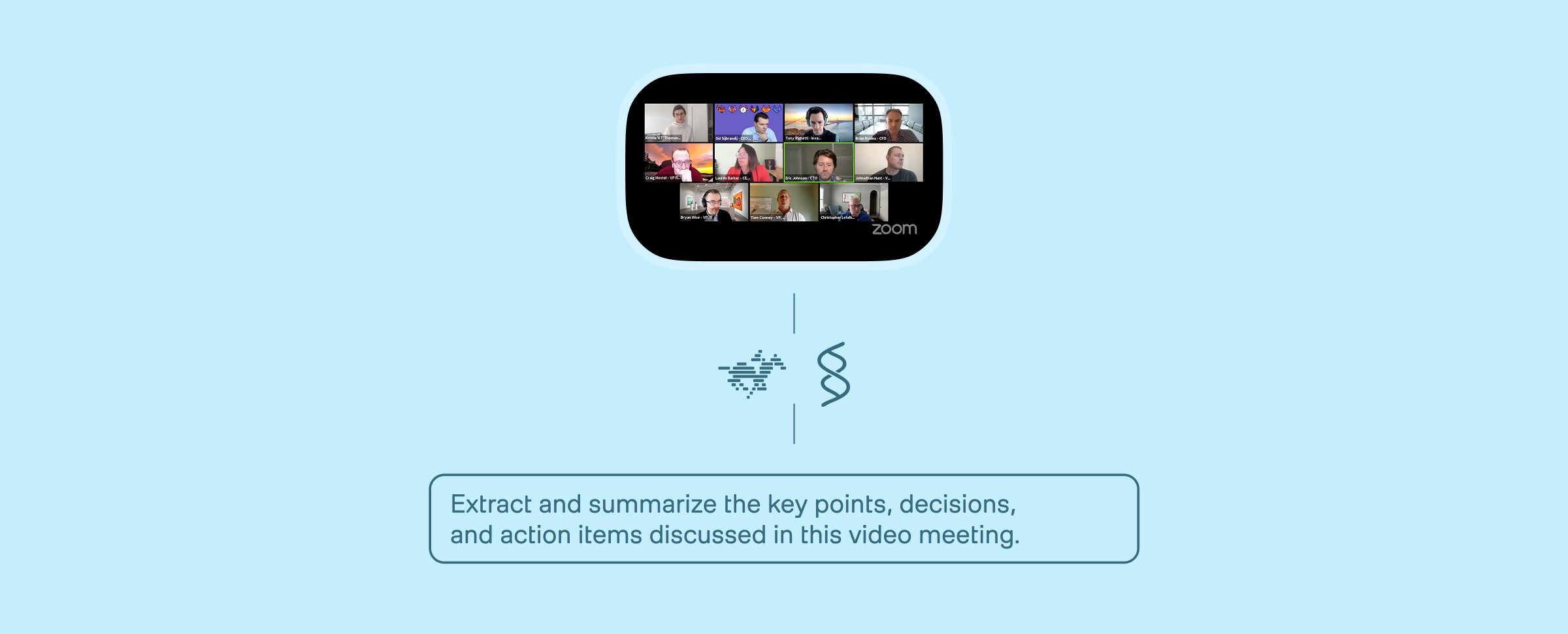
This tutorial walks through building an enterprise video analysis agent using AWS AgentCore and Strands Agent that combines Twelve Labs' Pegasus and Marengo models for video search and analysis with Slack integration, deployed as a cross-platform ElectronJS desktop application with CloudWatch observability.
This tutorial walks through building an enterprise video analysis agent using AWS AgentCore and Strands Agent that combines Twelve Labs' Pegasus and Marengo models for video search and analysis with Slack integration, deployed as a cross-platform ElectronJS desktop application with CloudWatch observability.
Dec 28, 2025
15 Minutes
Introduction
From an engineer’s daily standup on Zoom to a recruiter’s 5th candidate call of the day, any working professional knows how frequent and vital meetings are in everyday work. In fact, according to leading meeting platforms like Zoom, the average employee spends nearly 392 hours in meetings per year. With all those meeting video archives, notes, and easily forgotten to-do lists, employees and enterprises are often left with unproductive post-meeting tasks and videos.
What if there was a way to easily search through 1000+ hours of this video content to find exact moments and find personalized answers to your meeting content? Not only that, what if these insights could then be immediately provided to your entire enterprise through popular communication platforms like Slack?
Thanks to the latest integration of TwelveLabs into AWS Strands Agent this is no longer a dream, in fact in today’s tutorial we are going to build this exact feature using AWS AgentCore, TwelveLabs, and ElectronJS.
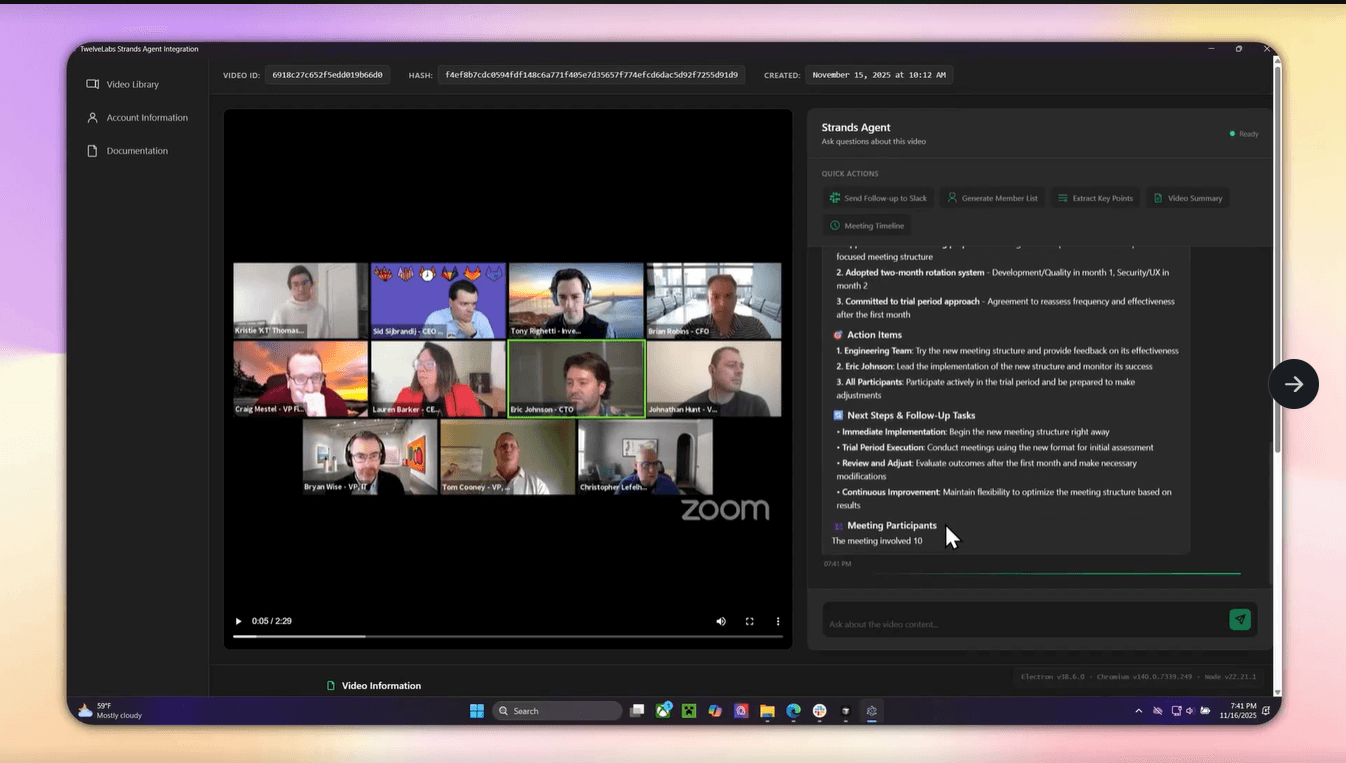
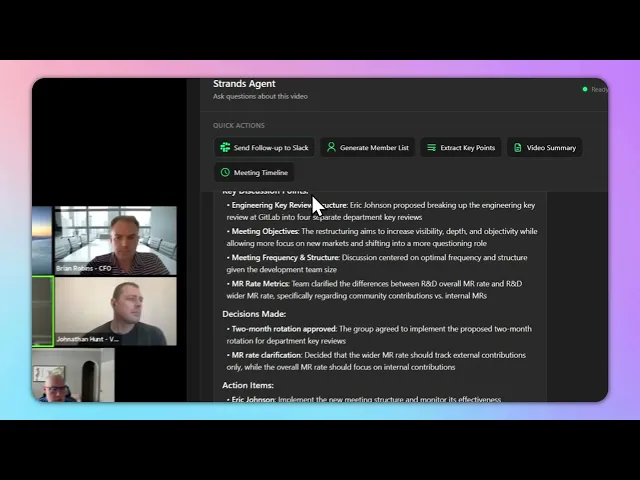
Application Demo
Before we begin coding, let’s quickly preview what we’ll be building.
If you’d like to try it on your own MacOS or Windows device feel free to download the latest release or preview the codebase below.
Download Latest Release: https://github.com/nathanchess/twelvelabs-agentcore-demo/releases/tag/v1.0.0
Github Codebase: https://github.com/nathanchess/twelvelabs-agentcore-demo
Now that we know what we’re building, let’s get started on building it ourselves! 😊
Learning Objectives
In this tutorial you will:
Deploy a production ready AI agent on AWS AgentCore, leveraging different LLM providers within the AWS ecosystem such as AWS Bedrock, OpenAI, Ollama, and more.
Build custom tools to allow your AI agent to interact with external services beyond the Strands Tools.
Integrate external tooling with Slack and TwelveLabs into your AI agent with pre-built tools.
Add observability to AI agents, allowing precise cost estimation and debug logs, using the AWS ecosystem and services like CloudWatch.
Compile your own cross-platform desktop application using ElectronJS.
Prerequisites
Node.JS 20+: Node.js — Download Node.js®
Bundled with node package manager (npm)
TwelveLabs API Key: Authentication | TwelveLabs
Python 3.8+: Download Python | Python.org
AWS Access Key: Credentials - Boto3 1.40.12 documentation
Slack Bot & App Token: https://docs.slack.dev/authentication/tokens/
Both tokens are auto-generated when you create a Slackbot via. the Slack API.
AWS Console Account and permission to provision AgentCore, Bedrock, and CloudWatch.
Intermediate understanding of Python and JavaScript.
Building the Agent with Strands Agent
Before integrating features like the Slackbot or TwelveLab’s video intelligence models, it’s important to gain an understanding of the underlying mechanics behind AI agents. According to the Strands Agent documentation, an AI agent is primarily an LLM with an additional orchestration layer. This orchestration layer allows an LLM to take action for a variety of reasons, including finding information, querying databases, running code, and more!
💡 This entire orchestration layer is known as the Agent Loop.
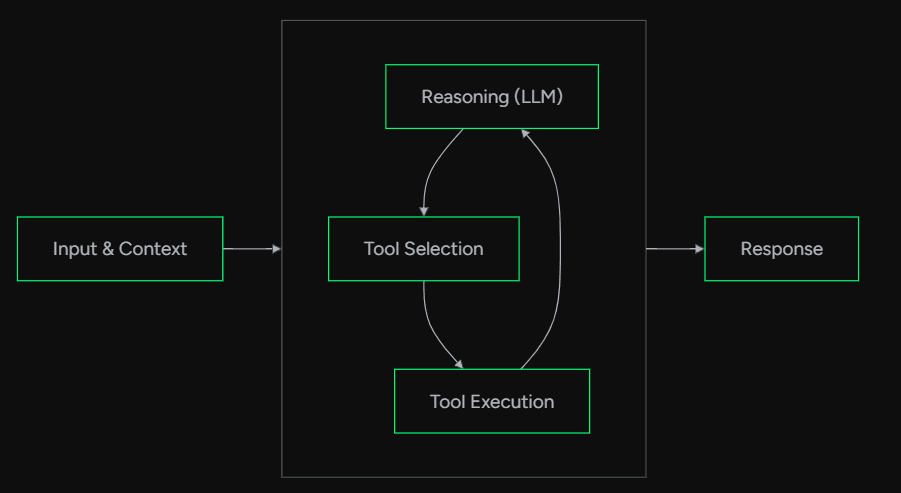
Figure 1: Agent Loop Figure from AWS Strands
💡 Tool: Direct function calls or APIs, formatted in a way that allows the Reasoning LLM to call to access specific actions based on input & context.
In the figure above, we see that there is an additional box in the middle containing tool execution, tool selection, and reasoning (LLM). Each of these steps all serve a vital purpose:
Reasoning (LLM) — Deduces the correct or if any tool needs to be called for given input.
Tool Selection — Finds requested tools based on Agent configuration.
Tool Execution — Runs tool and passes result back to reasoning LLM to deduce next steps.
You now may be asking how difficult it would be to build such a framework. How can the reasoning LLM recognize tools, but more importantly, call tools on-demand? How can one properly describe a tool, to give it meaning for the LLM to interpret? These are all difficult and complex subtopics that are fortunately built for us on AWS Strands Agent.
Though explaining through each concept is beyond the scope of this blog, I highly recommend you to learn in-depth these complex mechanisms via. the Strands Agent codebase: https://github.com/strands-agents.
With this framework, creating an Agent is as simple as a few lines:
from bedrock_agentcore.runtime import BedrockAgentCoreApp
from strands import Agent


app = BedrockAgentCoreApp()
agent = Agent()


@app.entrypoint
def invoke(payload):
    """Process user input and return a response"""
    user_message = payload.get("prompt", "Hello")
    result = agent(user_message)
    return {"result": result.message}


if __name__ == "__main__":
    app.run()
from bedrock_agentcore.runtime import BedrockAgentCoreApp
from strands import Agent


app = BedrockAgentCoreApp()
agent = Agent()


@app.entrypoint
def invoke(payload):
    """Process user input and return a response"""
    user_message = payload.get("prompt", "Hello")
    result = agent(user_message)
    return {"result": result.message}


if __name__ == "__main__":
    app.run()
With these simple lines, you have just created an AI agent! Albeit, it acts much like your standard LLM as we haven’t provisioned any tools yet, so it can only handle question and answer tasks.
Adding TwelveLabs to Strands Agent
Great, now we have a fully working AI Agent that excels at answering questions given input and context. However, as you test around more, you’ll find there are several limitations:
Cannot handle video data or really any other data format beyond strings properly.
Confined to just Q&A tasks.
Lack of observability in what the Reasoning LLM thinks and how it decides, which leads to poor debugging of AI agents in production. (You don’t know what’s really happening 😲)
In order to expand the AI agent’s capabilities, we now must introduce tools into our code! As mentioned before, tools tend to be direct functions or API calls that the LLM can directly access. In Strands Agent they can be formatted and provided to AI agent in two ways:
1 - Default tools provided by strands_tools Python package:
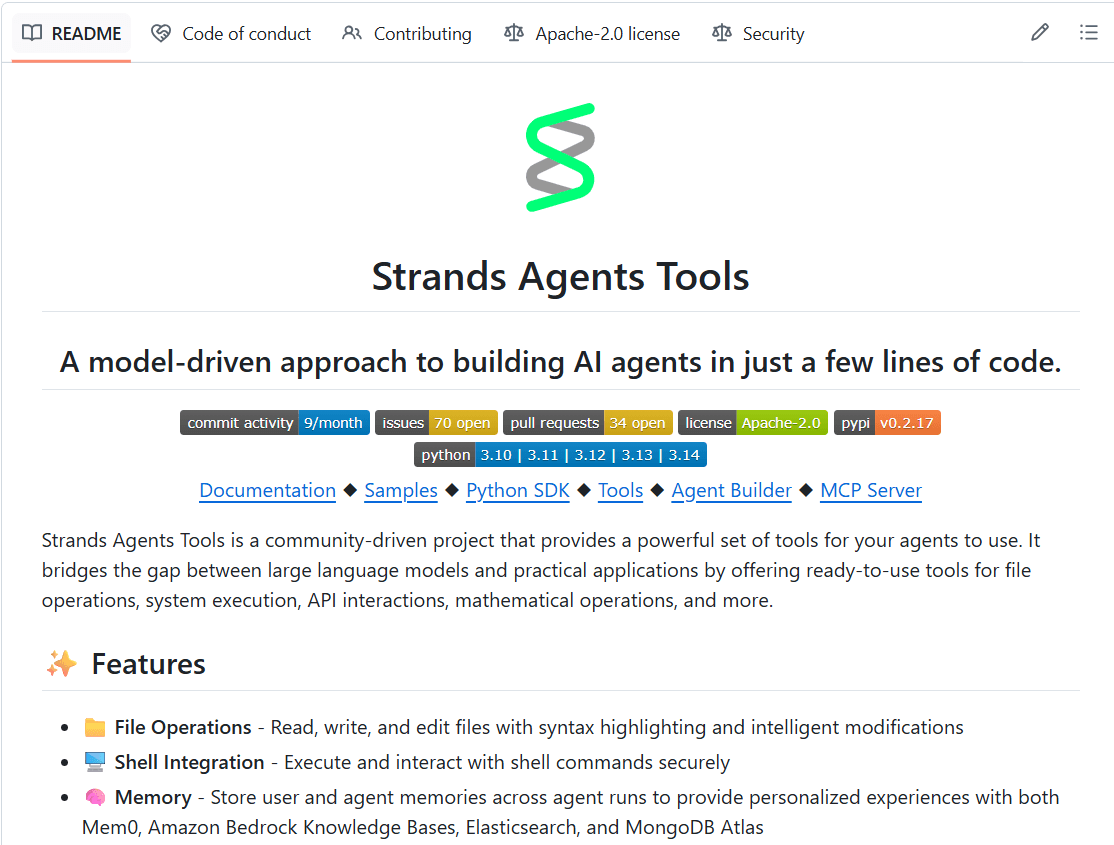
Figure 2: Strands Agent Tools Documentation
Strands Agent provides nearly 20+ tools by default that you can add to your AI agent! These tools range from simple File operations on the Shell all the way to direct platform integrations to Slack, TwelveLabs, and AWS.
In this project we will use the following tools:
TwelveLabs — Provides the base video intelligence with Pegasus and the new Marengo 3.0 model.
Slack — Allows us to directly interact with our enterprise at SlackBot
Note: Credentials must be provided via. Slack Bot and Slack App Token.
Environment — Simple tool that sets environment variables, key to AgentCore session handling.
Adding these tools is just as simple as creating the agent, with a few lines of code:
from strands import Agent
from strands_tools import calculator, file_read, shell


# Add tools to our agent
agent = Agent(
    tools=[calculator, file_read, shell]
)


# Agent will automatically determine when to use the calculator tool
agent("What is 42 ^ 9")


print("\n\n")  # Print new lines


# Agent will use the shell and file reader tool when appropriate
agent("Show me the contents of a single file in this directory")
from strands import Agent
from strands_tools import calculator, file_read, shell


# Add tools to our agent
agent = Agent(
    tools=[calculator, file_read, shell]
)


# Agent will automatically determine when to use the calculator tool
agent("What is 42 ^ 9")


print("\n\n")  # Print new lines


# Agent will use the shell and file reader tool when appropriate
agent("Show me the contents of a single file in this directory")
As you might notice in the code snippet above, we simply import the tools we want using strands_tools then plug in those tools as an additional parameter inside Agent(). Just like that you have expanded your Agent’s capabilities once more so that it can now take action! The entire agent loop described above will happen in the background, but now it can call the calculator, file_read, and shell tool if needed!
2 - Custom tooling built in Python with Strands Agent:
Though we will not need to build custom tools for our application, it’s important to note that Strands Agent provides a helpful framework to build your custom tools, by not only defining the function itself but the metadata associated with a function so it can be properly referenced.
from strands import tool


@tool
def weather_forecast(city: str, days: int = 3) -> str:
    """Get weather forecast for a city.


    Args:
        city: The name of the city
        days: Number of days for the forecast
    """
    return f"Weather forecast for {city} for the next {days} days..."
from strands import tool


@tool
def weather_forecast(city: str, days: int = 3) -> str:
    """Get weather forecast for a city.


    Args:
        city: The name of the city
        days: Number of days for the forecast
    """
    return f"Weather forecast for {city} for the next {days} days..."
As seen in the code snippet above, a tool can be created with pre-existing functions by adding the @tool decorator above your functions. The docstring is then used as metadata to be interpreted by the reasoning LLM in tool deduction.
With those two methods in mind, let’s go ahead and implement the following tools in our own AI Agent!
import json
import os
import asyncio
from dotenv import load_dotenv


load_dotenv()


from bedrock_agentcore.runtime import BedrockAgentCoreApp
from strands import Agent
from strands_tools import environment
from custom_tools import chat_video, search_video, get_slack_channel_ids, get_video_index, slack, fetch_video_url


os.environ["BYPASS_TOOL_CONSENT"] = "true"
os.environ["STRANDS_SLACK_AUTO_REPLY"] = "true"
os.environ["STRANDS_SLACK_LISTEN_ONLY_TAG"] = ""


def get_tools():
    return [slack, environment, chat_video, search_video, get_slack_channel_ids, get_video_index, fetch_video_url]


app = BedrockAgentCoreApp()
agent = Agent(
    tools=get_tools()
)


# Track if socket mode has been started to avoid multiple starts
_socket_mode_started = False


@app.entrypoint
async def invoke(payload):
    """
    Process system request directly and ONLY from Electron app.
    """
    global _socket_mode_started


    system_message = payload.get("prompt")

    # Process the agent stream (independent of socket mode)
    stream = agent.stream_async(system_message)


    async for event in stream:
        if "data" in event:
            yield event['data']

if __name__ == '__main__':
    app.run()
import json
import os
import asyncio
from dotenv import load_dotenv


load_dotenv()


from bedrock_agentcore.runtime import BedrockAgentCoreApp
from strands import Agent
from strands_tools import environment
from custom_tools import chat_video, search_video, get_slack_channel_ids, get_video_index, slack, fetch_video_url


os.environ["BYPASS_TOOL_CONSENT"] = "true"
os.environ["STRANDS_SLACK_AUTO_REPLY"] = "true"
os.environ["STRANDS_SLACK_LISTEN_ONLY_TAG"] = ""


def get_tools():
    return [slack, environment, chat_video, search_video, get_slack_channel_ids, get_video_index, fetch_video_url]


app = BedrockAgentCoreApp()
agent = Agent(
    tools=get_tools()
)


# Track if socket mode has been started to avoid multiple starts
_socket_mode_started = False


@app.entrypoint
async def invoke(payload):
    """
    Process system request directly and ONLY from Electron app.
    """
    global _socket_mode_started


    system_message = payload.get("prompt")

    # Process the agent stream (independent of socket mode)
    stream = agent.stream_async(system_message)


    async for event in stream:
        if "data" in event:
            yield event['data']

if __name__ == '__main__':
    app.run()
In the code snippet above, we have loaded in tools from strands_tools specifically:
TwelveLabs:
chat_video,search_videoSlack:
slack,get_slack_channel_ids
💡These tools are the official integrations from their respective teams, hence I highly recommend diving deeper into the Strands Tools repository to see how production-grade tools are written for AI agents!
More importantly, thanks to the latest integration into TwelveLabs, you now can deploy production grade AI agents that interact with your video data into a single line of code. More information on our specific integrations can be found in this blog.
Deploying on AWS AgentCore
Now that we have a working AI agent on our local machine we need to bring this to production so that end users can also access these amazing tools and agents! Luckily for us, Strands Agent allows us to deploy to the AWS ecosystem in a single command.
# Deploy to AWS
# Deploy to AWS
Upon running this command, several things will happen to your local AI agent:
The project will be containerized with Docker, Finch, or Podman then uploaded to AWS Elastic Container Registry to hold your code, logic, and custom tools if any.
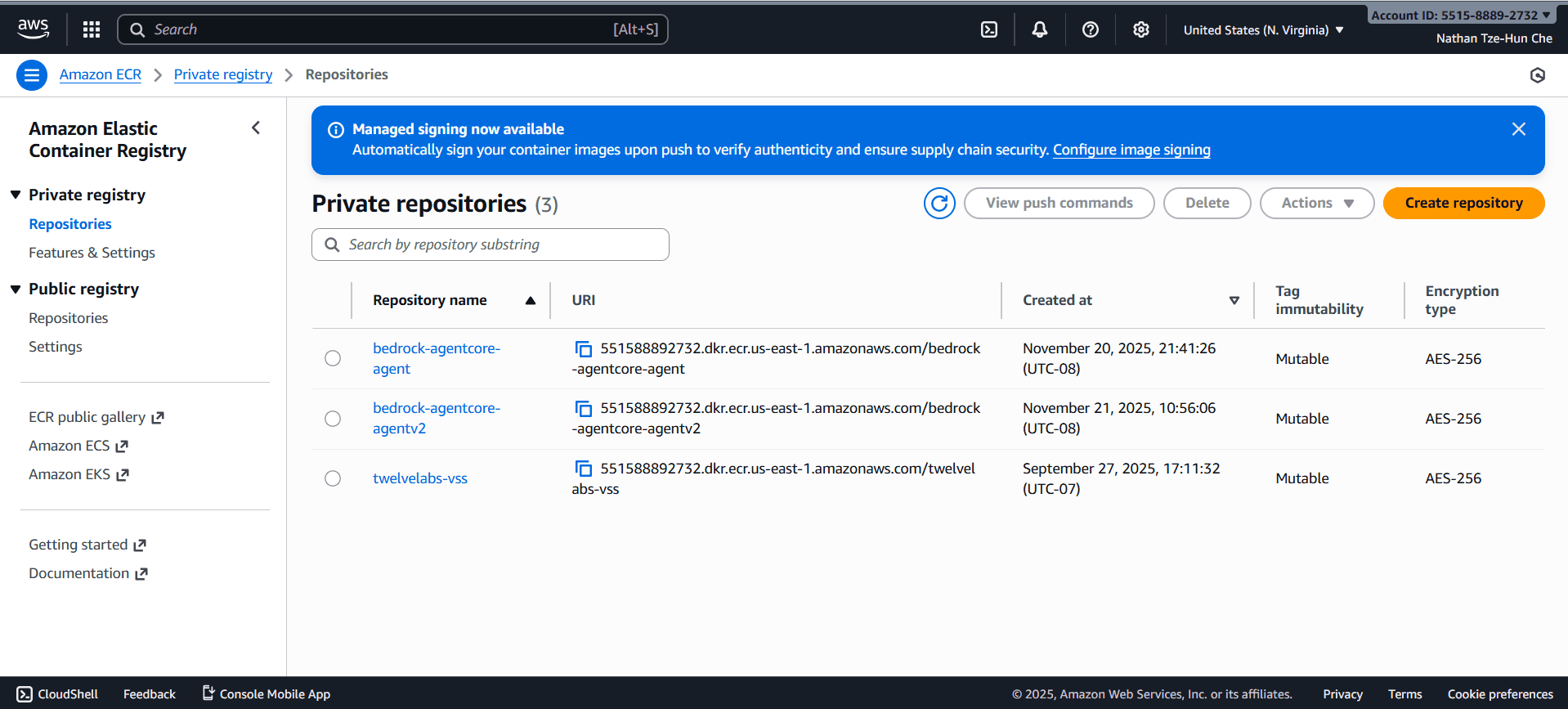
Depending on the name provided during launch, it will be assigned a unique repository URI and viewable within your ECR dashboard.
Docker file is automatically created to install necessary dependencies, forward ports (to enable the AI agent to be called like an API), and run specific entrypoint.
FROM ghcr.io/astral-sh/uv:python3.13-bookworm-slim
WORKDIR /app


# All environment variables in one layer
ENV UV_SYSTEM_PYTHON=1 \
    UV_COMPILE_BYTECODE=1 \
    UV_NO_PROGRESS=1 \
    PYTHONUNBUFFERED=1 \
    DOCKER_CONTAINER=1 \
    AWS_REGION=us-east-1 \
    AWS_DEFAULT_REGION=us-east-1


COPY requirements.txt requirements.txt


# Install from requirements file
RUN uv pip install -r requirements.txt


# Install FFmpeg
RUN apt-get update && \
    apt-get install -y ffmpeg && \
    apt-get clean && \
    rm -rf /var/lib/apt/lists/*


RUN uv pip install aws-opentelemetry-distro==0.12.2


# Signal that this is running in Docker for host binding logic
ENV DOCKER_CONTAINER=1


# Create non-root user
RUN useradd -m -u 1000 bedrock_agentcore
USER bedrock_agentcore


EXPOSE 9000
EXPOSE 8000
EXPOSE 8080


# Copy entire project (respecting .dockerignore)
COPY . .


# Use the full module path


CMD ["opentelemetry-instrument", "python", "-m", "agent"
FROM ghcr.io/astral-sh/uv:python3.13-bookworm-slim
WORKDIR /app


# All environment variables in one layer
ENV UV_SYSTEM_PYTHON=1 \
    UV_COMPILE_BYTECODE=1 \
    UV_NO_PROGRESS=1 \
    PYTHONUNBUFFERED=1 \
    DOCKER_CONTAINER=1 \
    AWS_REGION=us-east-1 \
    AWS_DEFAULT_REGION=us-east-1


COPY requirements.txt requirements.txt


# Install from requirements file
RUN uv pip install -r requirements.txt


# Install FFmpeg
RUN apt-get update && \
    apt-get install -y ffmpeg && \
    apt-get clean && \
    rm -rf /var/lib/apt/lists/*


RUN uv pip install aws-opentelemetry-distro==0.12.2


# Signal that this is running in Docker for host binding logic
ENV DOCKER_CONTAINER=1


# Create non-root user
RUN useradd -m -u 1000 bedrock_agentcore
USER bedrock_agentcore


EXPOSE 9000
EXPOSE 8000
EXPOSE 8080


# Copy entire project (respecting .dockerignore)
COPY . .


# Use the full module path


CMD ["opentelemetry-instrument", "python", "-m", "agent"
This auto-generated file is what is passed into your container within ECR, so that when AWS AgentCore attempts to host your agent it will know exact dependencies, entrypoint, and ports to expose the API.
AWS AgentCore launches your ECR container on specific ports and acts as a REST API.
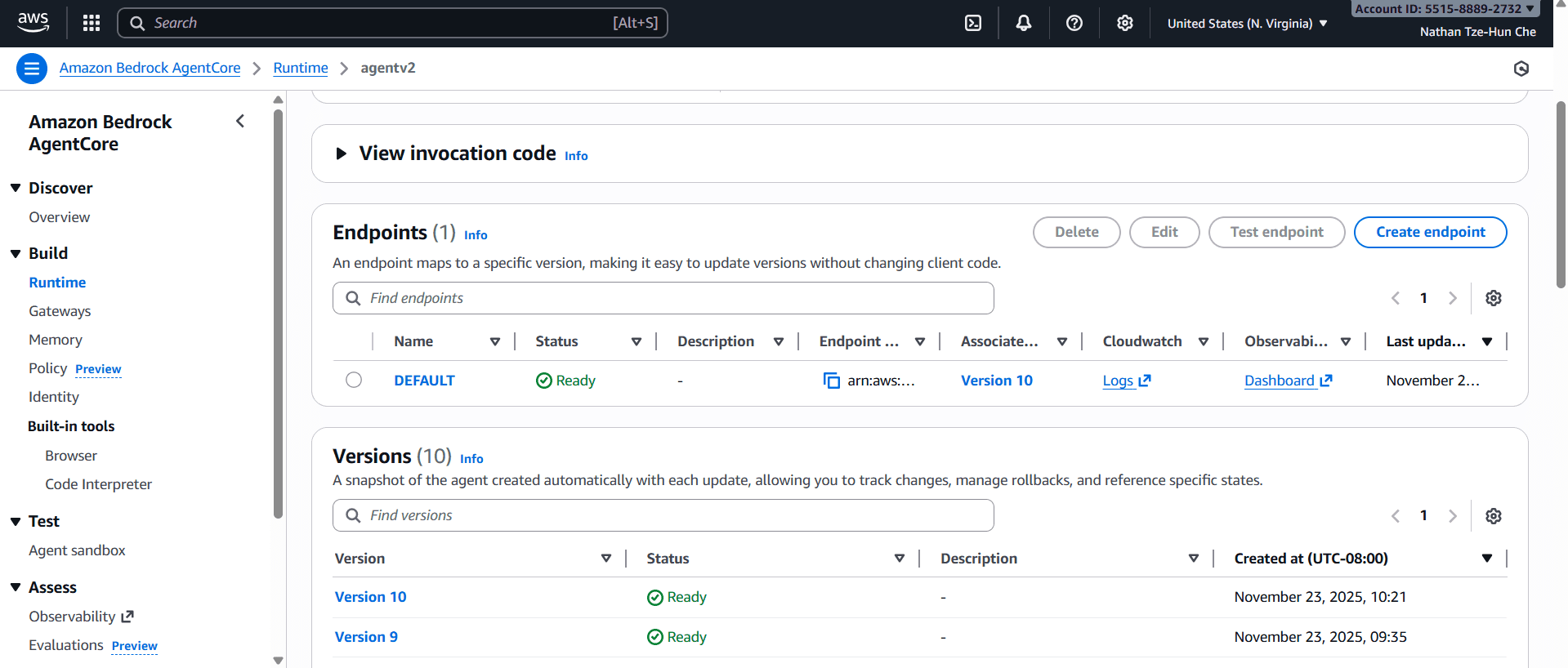
Here you can see real-time updates and important statistics regarding your AI deployment including version history, runtime sessions, error rate, and more!
💡Despite seeming like a simple dashboard, observability is a key component of building production-ready AI agents. These statistics allow you to calculate accurate price estimates, see where the code is failing, and active number of chat sessions.
Agentcore runtime is linked to CloudWatch for additional code-level observability.
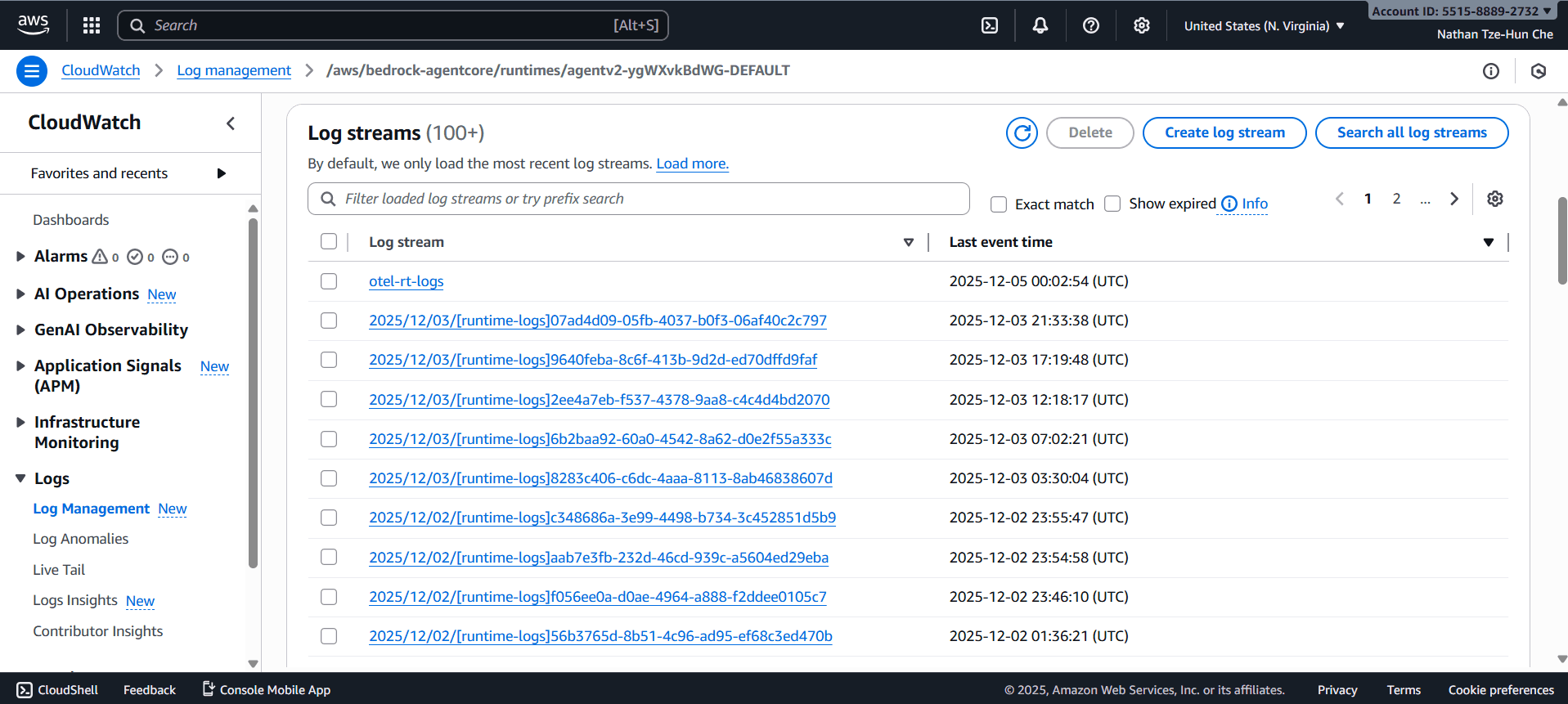
Alongside the AgentCore dashboard, CloudWatch logs give code-level errors and reports on each individual chat session ever had with the AI agent in production. This again provides invaluable insight as to how to debug.
With that being said, you have now fully deployed an AI agent that has access to TwelveLabs and Slack API tools using Strands Agent! 🎉
Agent Technical Architecture
Before we move on to building out the frontend of this application it is important to have a clear understanding of the key decisions behind why we built our backend the way we did. Below are the technical architectures drawn in LucidCharts, that go more in-depth of how the data flows within our backend.
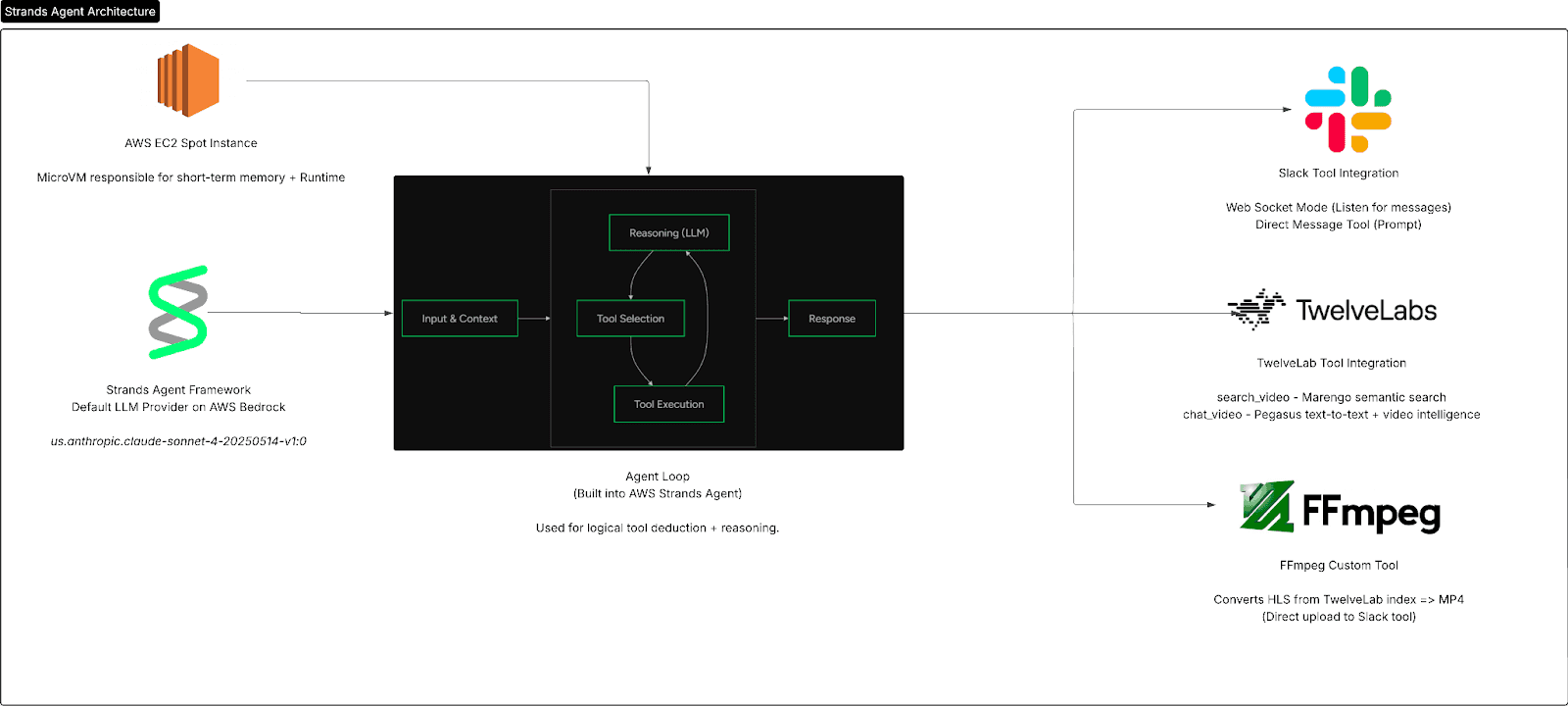
As you can see from the technical architecture above, Strands Agent serves as the foundational entry point for our AI agent, the agent loop then decides on tools, and in our case has the option to decide between 3 tools: Slack, TwelveLabs, or FFmpeg for video preprocessing.
One thing to note is the usage of AWS EC2 spot instances for AgentCore. This cloud server is automatically provisioned as the default server for AgentCore. Can you think why?
💡Learning Opportunity: Spot instances are instances are unused EC2 instances within the AWS ecosystem. This means that there is a major saving opportunity in terms of cloud computing cost if you do not need consistent long-term reservation of cloud resources. For AgentCore this is perfectly viable as cloud computation is only needed periodically on prompt!
The backend also has several cool technical details including agent memory and session maintainer via. heartbeat/ack POST requests, but these are all much too in-depth for the purpose of this blog. If you’d like to read more I highly encourage you to check out the official GitHub repository for this software.
Building Cross-Platform Desktop Application
I hope that so far you have a good understanding of not only the underlying mechanisms behind our AI agent, but also how easy it is to now implement advanced video intelligence capabilities into your agentic models thanks to this latest Strands Agent integration.
With that in mind, we can finally begin developing the frontend desktop application. The official technology stack for the application is ElectronJS and NodeJS, so ensure that you have those installed before pulling the code from the repository!
Let’s start by taking a look at the file structure.
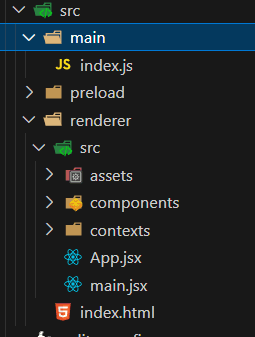
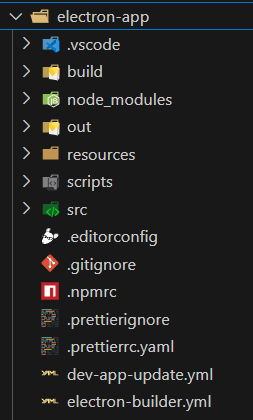
Without going too much into the frontend development, as this blog is meant to focus on AgentCore and TwelveLabs, building this desktop application is much like building a ReactJS website. Specifically, this frontend desktop application is highly modular, divided into both frontend components, context, and logic based in main.js.
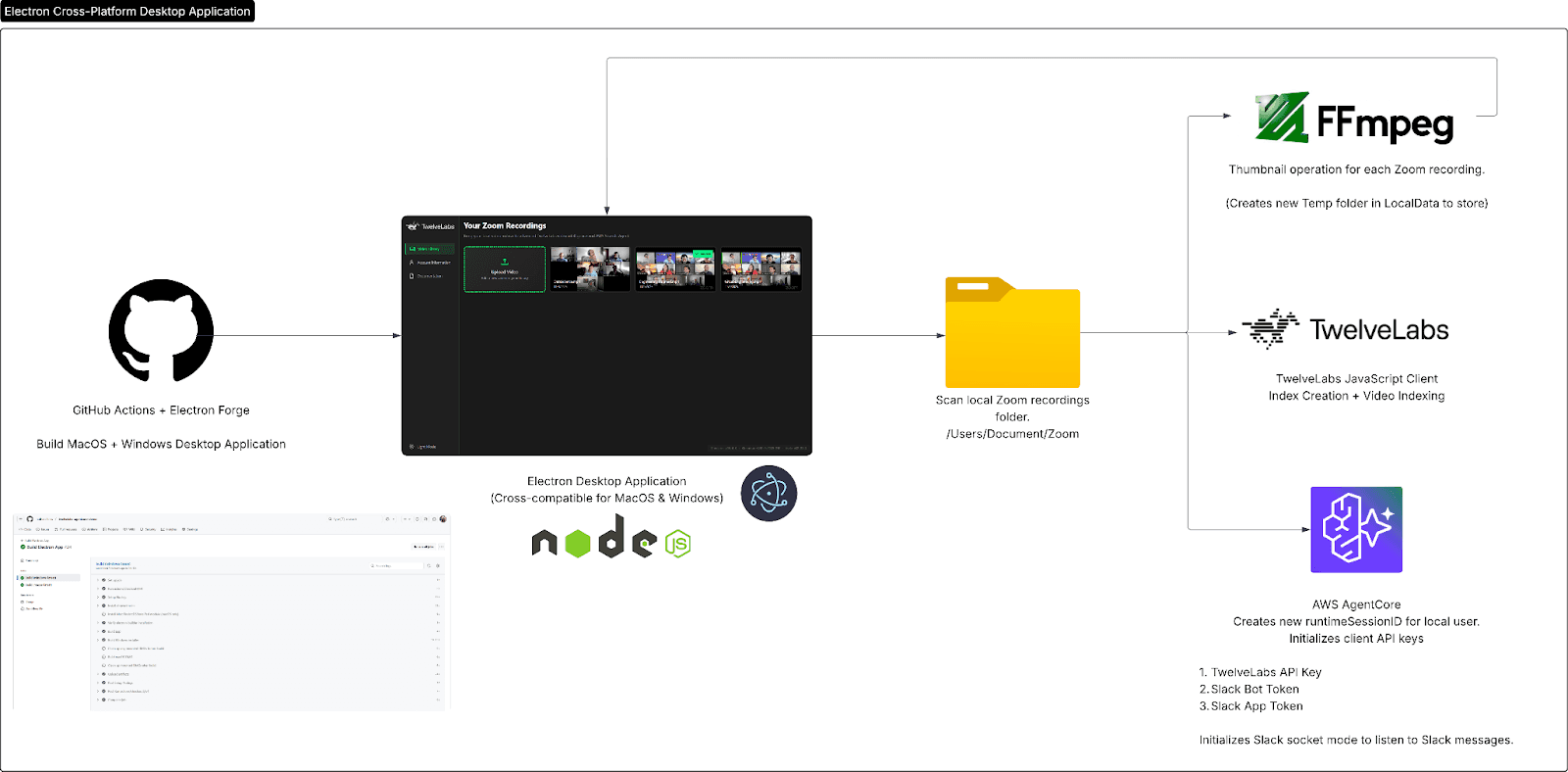
Above is the official technical architecture, which shows exactly where this desktop application slots into the rest of the software. To keep it short, we use GitHub Actions as a CI/CD pipeline to build for both MacOS and Windows (which you can download from the releases here) and use FFmpeg and NodeJS to handle preprocessing of videos. Finally NodeJS directly calls the API endpoint hosted from AWS AgentCore to access our AI Agent.
I highly encourage you to look further on the key decisions and technical architecture in this in-depth document here.
Conclusion
Congratulations! 🎉 You have just completed this tutorial and learned not only how to build an AWS AgentCore agent from the Strands Agent framework, but many of the underlying concepts revolving around agentic AI. Furthermore, you have learned about how easy it can be to integrate advanced video intelligence technology like TwelveLabs into your agentic AI.
Check out some more in-depth resources here:
Official GitHub Repository: https://github.com/nathanchess/twelvelabs-agentcore-demo
Technical Architecture Diagram (LucidChart): https://lucid.app/lucidchart/40b7aa79-6da6-4bed-bd63-5f34e3955685/edit?viewport_loc=424%2C-502%2C4025%2C1778%2C0_0&invitationId=inv_ba388ce0-6ad8-4f77-9ac1-c8a4edc405db
Official Software Release for this Application: https://github.com/nathanchess/twelvelabs-agentcore-demo/releases/tag/v1.0.0
Strands Agent Documentation: https://strandsagents.com/latest/
AgentCore Documentation: https://aws.amazon.com/bedrock/agentcore/
Introduction
From an engineer’s daily standup on Zoom to a recruiter’s 5th candidate call of the day, any working professional knows how frequent and vital meetings are in everyday work. In fact, according to leading meeting platforms like Zoom, the average employee spends nearly 392 hours in meetings per year. With all those meeting video archives, notes, and easily forgotten to-do lists, employees and enterprises are often left with unproductive post-meeting tasks and videos.
What if there was a way to easily search through 1000+ hours of this video content to find exact moments and find personalized answers to your meeting content? Not only that, what if these insights could then be immediately provided to your entire enterprise through popular communication platforms like Slack?
Thanks to the latest integration of TwelveLabs into AWS Strands Agent this is no longer a dream, in fact in today’s tutorial we are going to build this exact feature using AWS AgentCore, TwelveLabs, and ElectronJS.
Application Demo
Before we begin coding, let’s quickly preview what we’ll be building.
If you’d like to try it on your own MacOS or Windows device feel free to download the latest release or preview the codebase below.
Download Latest Release: https://github.com/nathanchess/twelvelabs-agentcore-demo/releases/tag/v1.0.0
Github Codebase: https://github.com/nathanchess/twelvelabs-agentcore-demo
Now that we know what we’re building, let’s get started on building it ourselves! 😊
Learning Objectives
In this tutorial you will:
Deploy a production ready AI agent on AWS AgentCore, leveraging different LLM providers within the AWS ecosystem such as AWS Bedrock, OpenAI, Ollama, and more.
Build custom tools to allow your AI agent to interact with external services beyond the Strands Tools.
Integrate external tooling with Slack and TwelveLabs into your AI agent with pre-built tools.
Add observability to AI agents, allowing precise cost estimation and debug logs, using the AWS ecosystem and services like CloudWatch.
Compile your own cross-platform desktop application using ElectronJS.
Prerequisites
Node.JS 20+: Node.js — Download Node.js®
Bundled with node package manager (npm)
TwelveLabs API Key: Authentication | TwelveLabs
Python 3.8+: Download Python | Python.org
AWS Access Key: Credentials - Boto3 1.40.12 documentation
Slack Bot & App Token: https://docs.slack.dev/authentication/tokens/
Both tokens are auto-generated when you create a Slackbot via. the Slack API.
AWS Console Account and permission to provision AgentCore, Bedrock, and CloudWatch.
Intermediate understanding of Python and JavaScript.
Building the Agent with Strands Agent
Before integrating features like the Slackbot or TwelveLab’s video intelligence models, it’s important to gain an understanding of the underlying mechanics behind AI agents. According to the Strands Agent documentation, an AI agent is primarily an LLM with an additional orchestration layer. This orchestration layer allows an LLM to take action for a variety of reasons, including finding information, querying databases, running code, and more!
💡 This entire orchestration layer is known as the Agent Loop.
Figure 1: Agent Loop Figure from AWS Strands
💡 Tool: Direct function calls or APIs, formatted in a way that allows the Reasoning LLM to call to access specific actions based on input & context.
In the figure above, we see that there is an additional box in the middle containing tool execution, tool selection, and reasoning (LLM). Each of these steps all serve a vital purpose:
Reasoning (LLM) — Deduces the correct or if any tool needs to be called for given input.
Tool Selection — Finds requested tools based on Agent configuration.
Tool Execution — Runs tool and passes result back to reasoning LLM to deduce next steps.
You now may be asking how difficult it would be to build such a framework. How can the reasoning LLM recognize tools, but more importantly, call tools on-demand? How can one properly describe a tool, to give it meaning for the LLM to interpret? These are all difficult and complex subtopics that are fortunately built for us on AWS Strands Agent.
Though explaining through each concept is beyond the scope of this blog, I highly recommend you to learn in-depth these complex mechanisms via. the Strands Agent codebase: https://github.com/strands-agents.
With this framework, creating an Agent is as simple as a few lines:
from bedrock_agentcore.runtime import BedrockAgentCoreApp
from strands import Agent


app = BedrockAgentCoreApp()
agent = Agent()


@app.entrypoint
def invoke(payload):
    """Process user input and return a response"""
    user_message = payload.get("prompt", "Hello")
    result = agent(user_message)
    return {"result": result.message}


if __name__ == "__main__":
    app.run()
With these simple lines, you have just created an AI agent! Albeit, it acts much like your standard LLM as we haven’t provisioned any tools yet, so it can only handle question and answer tasks.
Adding TwelveLabs to Strands Agent
Great, now we have a fully working AI Agent that excels at answering questions given input and context. However, as you test around more, you’ll find there are several limitations:
Cannot handle video data or really any other data format beyond strings properly.
Confined to just Q&A tasks.
Lack of observability in what the Reasoning LLM thinks and how it decides, which leads to poor debugging of AI agents in production. (You don’t know what’s really happening 😲)
In order to expand the AI agent’s capabilities, we now must introduce tools into our code! As mentioned before, tools tend to be direct functions or API calls that the LLM can directly access. In Strands Agent they can be formatted and provided to AI agent in two ways:
1 - Default tools provided by strands_tools Python package:
Figure 2: Strands Agent Tools Documentation
Strands Agent provides nearly 20+ tools by default that you can add to your AI agent! These tools range from simple File operations on the Shell all the way to direct platform integrations to Slack, TwelveLabs, and AWS.
In this project we will use the following tools:
TwelveLabs — Provides the base video intelligence with Pegasus and the new Marengo 3.0 model.
Slack — Allows us to directly interact with our enterprise at SlackBot
Note: Credentials must be provided via. Slack Bot and Slack App Token.
Environment — Simple tool that sets environment variables, key to AgentCore session handling.
Adding these tools is just as simple as creating the agent, with a few lines of code:
from strands import Agent
from strands_tools import calculator, file_read, shell


# Add tools to our agent
agent = Agent(
    tools=[calculator, file_read, shell]
)


# Agent will automatically determine when to use the calculator tool
agent("What is 42 ^ 9")


print("\n\n")  # Print new lines


# Agent will use the shell and file reader tool when appropriate
agent("Show me the contents of a single file in this directory")
As you might notice in the code snippet above, we simply import the tools we want using strands_tools then plug in those tools as an additional parameter inside Agent(). Just like that you have expanded your Agent’s capabilities once more so that it can now take action! The entire agent loop described above will happen in the background, but now it can call the calculator, file_read, and shell tool if needed!
2 - Custom tooling built in Python with Strands Agent:
Though we will not need to build custom tools for our application, it’s important to note that Strands Agent provides a helpful framework to build your custom tools, by not only defining the function itself but the metadata associated with a function so it can be properly referenced.
from strands import tool


@tool
def weather_forecast(city: str, days: int = 3) -> str:
    """Get weather forecast for a city.


    Args:
        city: The name of the city
        days: Number of days for the forecast
    """
    return f"Weather forecast for {city} for the next {days} days..."
As seen in the code snippet above, a tool can be created with pre-existing functions by adding the @tool decorator above your functions. The docstring is then used as metadata to be interpreted by the reasoning LLM in tool deduction.
With those two methods in mind, let’s go ahead and implement the following tools in our own AI Agent!
import json
import os
import asyncio
from dotenv import load_dotenv


load_dotenv()


from bedrock_agentcore.runtime import BedrockAgentCoreApp
from strands import Agent
from strands_tools import environment
from custom_tools import chat_video, search_video, get_slack_channel_ids, get_video_index, slack, fetch_video_url


os.environ["BYPASS_TOOL_CONSENT"] = "true"
os.environ["STRANDS_SLACK_AUTO_REPLY"] = "true"
os.environ["STRANDS_SLACK_LISTEN_ONLY_TAG"] = ""


def get_tools():
    return [slack, environment, chat_video, search_video, get_slack_channel_ids, get_video_index, fetch_video_url]


app = BedrockAgentCoreApp()
agent = Agent(
    tools=get_tools()
)


# Track if socket mode has been started to avoid multiple starts
_socket_mode_started = False


@app.entrypoint
async def invoke(payload):
    """
    Process system request directly and ONLY from Electron app.
    """
    global _socket_mode_started


    system_message = payload.get("prompt")

    # Process the agent stream (independent of socket mode)
    stream = agent.stream_async(system_message)


    async for event in stream:
        if "data" in event:
            yield event['data']

if __name__ == '__main__':
    app.run()
In the code snippet above, we have loaded in tools from strands_tools specifically:
TwelveLabs:
chat_video,search_videoSlack:
slack,get_slack_channel_ids
💡These tools are the official integrations from their respective teams, hence I highly recommend diving deeper into the Strands Tools repository to see how production-grade tools are written for AI agents!
More importantly, thanks to the latest integration into TwelveLabs, you now can deploy production grade AI agents that interact with your video data into a single line of code. More information on our specific integrations can be found in this blog.
Deploying on AWS AgentCore
Now that we have a working AI agent on our local machine we need to bring this to production so that end users can also access these amazing tools and agents! Luckily for us, Strands Agent allows us to deploy to the AWS ecosystem in a single command.
# Deploy to AWS
Upon running this command, several things will happen to your local AI agent:
The project will be containerized with Docker, Finch, or Podman then uploaded to AWS Elastic Container Registry to hold your code, logic, and custom tools if any.
Depending on the name provided during launch, it will be assigned a unique repository URI and viewable within your ECR dashboard.
Docker file is automatically created to install necessary dependencies, forward ports (to enable the AI agent to be called like an API), and run specific entrypoint.
FROM ghcr.io/astral-sh/uv:python3.13-bookworm-slim
WORKDIR /app


# All environment variables in one layer
ENV UV_SYSTEM_PYTHON=1 \
    UV_COMPILE_BYTECODE=1 \
    UV_NO_PROGRESS=1 \
    PYTHONUNBUFFERED=1 \
    DOCKER_CONTAINER=1 \
    AWS_REGION=us-east-1 \
    AWS_DEFAULT_REGION=us-east-1


COPY requirements.txt requirements.txt


# Install from requirements file
RUN uv pip install -r requirements.txt


# Install FFmpeg
RUN apt-get update && \
    apt-get install -y ffmpeg && \
    apt-get clean && \
    rm -rf /var/lib/apt/lists/*


RUN uv pip install aws-opentelemetry-distro==0.12.2


# Signal that this is running in Docker for host binding logic
ENV DOCKER_CONTAINER=1


# Create non-root user
RUN useradd -m -u 1000 bedrock_agentcore
USER bedrock_agentcore


EXPOSE 9000
EXPOSE 8000
EXPOSE 8080


# Copy entire project (respecting .dockerignore)
COPY . .


# Use the full module path


CMD ["opentelemetry-instrument", "python", "-m", "agent"
This auto-generated file is what is passed into your container within ECR, so that when AWS AgentCore attempts to host your agent it will know exact dependencies, entrypoint, and ports to expose the API.
AWS AgentCore launches your ECR container on specific ports and acts as a REST API.
Here you can see real-time updates and important statistics regarding your AI deployment including version history, runtime sessions, error rate, and more!
💡Despite seeming like a simple dashboard, observability is a key component of building production-ready AI agents. These statistics allow you to calculate accurate price estimates, see where the code is failing, and active number of chat sessions.
Agentcore runtime is linked to CloudWatch for additional code-level observability.
Alongside the AgentCore dashboard, CloudWatch logs give code-level errors and reports on each individual chat session ever had with the AI agent in production. This again provides invaluable insight as to how to debug.
With that being said, you have now fully deployed an AI agent that has access to TwelveLabs and Slack API tools using Strands Agent! 🎉
Agent Technical Architecture
Before we move on to building out the frontend of this application it is important to have a clear understanding of the key decisions behind why we built our backend the way we did. Below are the technical architectures drawn in LucidCharts, that go more in-depth of how the data flows within our backend.
As you can see from the technical architecture above, Strands Agent serves as the foundational entry point for our AI agent, the agent loop then decides on tools, and in our case has the option to decide between 3 tools: Slack, TwelveLabs, or FFmpeg for video preprocessing.
One thing to note is the usage of AWS EC2 spot instances for AgentCore. This cloud server is automatically provisioned as the default server for AgentCore. Can you think why?
💡Learning Opportunity: Spot instances are instances are unused EC2 instances within the AWS ecosystem. This means that there is a major saving opportunity in terms of cloud computing cost if you do not need consistent long-term reservation of cloud resources. For AgentCore this is perfectly viable as cloud computation is only needed periodically on prompt!
The backend also has several cool technical details including agent memory and session maintainer via. heartbeat/ack POST requests, but these are all much too in-depth for the purpose of this blog. If you’d like to read more I highly encourage you to check out the official GitHub repository for this software.
Building Cross-Platform Desktop Application
I hope that so far you have a good understanding of not only the underlying mechanisms behind our AI agent, but also how easy it is to now implement advanced video intelligence capabilities into your agentic models thanks to this latest Strands Agent integration.
With that in mind, we can finally begin developing the frontend desktop application. The official technology stack for the application is ElectronJS and NodeJS, so ensure that you have those installed before pulling the code from the repository!
Let’s start by taking a look at the file structure.
Without going too much into the frontend development, as this blog is meant to focus on AgentCore and TwelveLabs, building this desktop application is much like building a ReactJS website. Specifically, this frontend desktop application is highly modular, divided into both frontend components, context, and logic based in main.js.
Above is the official technical architecture, which shows exactly where this desktop application slots into the rest of the software. To keep it short, we use GitHub Actions as a CI/CD pipeline to build for both MacOS and Windows (which you can download from the releases here) and use FFmpeg and NodeJS to handle preprocessing of videos. Finally NodeJS directly calls the API endpoint hosted from AWS AgentCore to access our AI Agent.
I highly encourage you to look further on the key decisions and technical architecture in this in-depth document here.
Conclusion
Congratulations! 🎉 You have just completed this tutorial and learned not only how to build an AWS AgentCore agent from the Strands Agent framework, but many of the underlying concepts revolving around agentic AI. Furthermore, you have learned about how easy it can be to integrate advanced video intelligence technology like TwelveLabs into your agentic AI.
Check out some more in-depth resources here:
Official GitHub Repository: https://github.com/nathanchess/twelvelabs-agentcore-demo
Technical Architecture Diagram (LucidChart): https://lucid.app/lucidchart/40b7aa79-6da6-4bed-bd63-5f34e3955685/edit?viewport_loc=424%2C-502%2C4025%2C1778%2C0_0&invitationId=inv_ba388ce0-6ad8-4f77-9ac1-c8a4edc405db
Official Software Release for this Application: https://github.com/nathanchess/twelvelabs-agentcore-demo/releases/tag/v1.0.0
Strands Agent Documentation: https://strandsagents.com/latest/
AgentCore Documentation: https://aws.amazon.com/bedrock/agentcore/




Platform
Enterprise
©
2026
TwelveLabs, Inc. All Rights Reserved

Platform
Enterprise
©
2026
TwelveLabs, Inc. All Rights Reserved

Platform
Enterprise
©
2026
TwelveLabs, Inc. All Rights Reserved