" height="1.90314px" id="wtDTm6bEW" transform="translate(26.225 0)" width="2.4723000000000006px"/><path d="M 0.557 0 L 1.438 0 C 1.746 0 1.995 0.25 1.995 0.559 L 1.995 1.344 C 1.995 1.653 1.746 1.903 1.438 1.903 L 0.557 1.903 C 0.25 1.903 0 1.653 0 1.344 L 0 0.559 C 0 0.25 0.25 0 0.557 0 Z" fill="rgb(29, 28, 27)" height="1.9031500000000001px" id="GnmDnNra_" transform="translate(36.408 2.728)" width="1.9953000000000003px"/><path d="M 6.224 0 L 0.558 0 C 0.25 0 0 0.25 0 0.559 L 0 1.344 C 0 1.653 0.25 1.903 0.558 1.903 L 6.224 1.903 C 6.531 1.903 6.781 1.653 6.781 1.344 L 6.781 0.559 C 6.781 0.25 6.531 0 6.224 0 Z" fill="rgb(29, 28, 27)" height="1.9031500000000001px" id="hKTQ3dbw4" transform="translate(34.261 5.456)" width="6.781100000000002px"/><path d="M 6.955 0 L 0.558 0 C 0.25 0 0 0.25 0 0.559 L 0 1.344 C 0 1.653 0.25 1.903 0.558 1.903 L 6.955 1.903 C 7.263 1.903 7.513 1.653 7.513 1.344 L 7.513 0.559 C 7.513 0.25 7.263 0 6.955 0 Z" fill="rgb(29, 28, 27)" height="1.9031500000000001px" id="G1Zzk9CUU" transform="translate(28.298 8.243)" width="7.513100000000001px"/><path d="M 7.123 0 L 0.558 0 C 0.25 0 0 0.25 0 0.559 L 0 1.344 C 0 1.653 0.25 1.903 0.558 1.903 L 7.123 1.903 C 7.431 1.903 7.681 1.653 7.681 1.344 L 7.681 0.559 C 7.681 0.25 7.431 0 7.123 0 Z" fill="rgb(29, 28, 27)" height="1.9030999999999985px" id="fm7cHxIfJ" transform="translate(0 10.972)" width="7.68067px"/><path d="M 13.447 0 L 0.558 0 C 0.25 0 0 0.25 0 0.559 L 0 1.344 C 0 1.653 0.25 1.903 0.558 1.903 L 13.447 1.903 C 13.755 1.903 14.004 1.653 14.004 1.344 L 14.004 0.559 C 14.004 0.25 13.755 0 13.447 0 Z" fill="rgb(29, 28, 27)" height="1.9030999999999985px" id="LowSwDrtg" transform="translate(9.552 10.972)" width="14.0044px"/><path d="M 0.558 0 L 8.212 0 C 8.52 0 8.77 0.25 8.77 0.559 L 8.77 1.344 C 8.77 1.653 8.52 1.903 8.212 1.903 L 0.558 1.903 C 0.25 1.903 0 1.653 0 1.344 L 0 0.559 C 0 0.25 0.25 0 0.558 0 Z" fill="rgb(29, 28, 27)" height="1.9030999999999985px" id="xRiKc2od7" transform="translate(27.041 10.972)" width="8.769900000000003px"/><path d="M 0.557 0 L 5.4 0 C 5.708 0 5.958 0.25 5.958 0.559 L 5.958 1.344 C 5.958 1.653 5.708 1.903 5.4 1.903 L 0.557 1.903 C 0.25 1.903 0 1.653 0 1.344 L 0 0.559 C 0 0.25 0.25 0 0.557 0 Z" fill="rgb(29, 28, 27)" height="1.9031500000000001px" id="JWdNVicde" transform="translate(36.796 8.243)" width="5.957599999999999px"/><path d="M 1.438 0 L 0.558 0 C 0.25 0 0 0.25 0 0.559 L 0 1.344 C 0 1.653 0.25 1.903 0.558 1.903 L 1.438 1.903 C 1.746 1.903 1.995 1.653 1.995 1.344 L 1.995 0.559 C 1.995 0.25 1.746 0 1.438 0 Z" fill="rgb(29, 28, 27)" height="1.9031500000000001px" id="RfFYVCT_T" transform="translate(28.717 5.456)" width="1.9953000000000003px"/><path d="M 0.558 0 L 2.895 0 C 3.203 0 3.453 0.25 3.453 0.559 L 3.453 1.406 C 3.453 1.714 3.203 1.964 2.895 1.964 L 0.558 1.964 C 0.25 1.964 0 1.714 0 1.406 L 0 0.559 C 0 0.25 0.25 0 0.558 0 Z" fill="rgb(29, 28, 27)" height="1.964299999999998px" id="dngJ6MU2p" transform="translate(16.183 24.582)" width="3.4525000000000006px"/><path d="M 1.706 0 L 0.558 0 C 0.25 0 0 0.25 0 0.559 L 0 1.406 C 0 1.714 0.25 1.964 0.558 1.964 L 1.706 1.964 C 2.014 1.964 2.263 1.714 2.263 1.406 L 2.263 0.559 C 2.263 0.25 2.014 0 1.706 0 Z" fill="rgb(29, 28, 27)" height="1.964299999999998px" id="N_fstvKmR" transform="translate(22.18 24.582)" width="2.2631999999999977px"/><path d="M 0.558 0 L 5.544 0 C 5.852 0 6.101 0.25 6.101 0.559 L 6.101 1.406 C 6.101 1.714 5.852 1.964 5.544 1.964 L 0.558 1.964 C 0.25 1.964 0 1.714 0 1.406 L 0 0.559 C 0 0.25 0.25 0 0.558 0 Z" fill="rgb(29, 28, 27)" height="1.964299999999998px" id="t55XLYcgb" transform="translate(25.486 24.582)" width="6.101399999999998px"/><path d="M 1.976 0 L 0.558 0 C 0.25 0 0 0.25 0 0.559 L 0 1.406 C 0 1.714 0.25 1.964 0.558 1.964 L 1.976 1.964 C 2.284 1.964 2.533 1.714 2.533 1.406 L 2.533 0.559 C 2.533 0.25 2.284 0 1.976 0 Z" fill="rgb(29, 28, 27)" height="1.964299999999998px" id="ZrEKTVTAe" transform="translate(28.542 21.854)" width="2.5334000000000003px"/><path d="M 0.557 0 L 1.438 0 C 1.746 0 1.995 0.25 1.995 0.559 L 1.995 1.406 C 1.995 1.714 1.746 1.964 1.438 1.964 L 0.557 1.964 C 0.25 1.964 0 1.714 0 1.406 L 0 0.559 C 0 0.25 0.25 0 0.557 0 Z" fill="rgb(29, 28, 27)" height="1.964299999999998px" id="Z0fPTp9aR" transform="translate(11.425 24.582)" width="1.9953000000000003px"/><path d="M 0 0.559 C 0 0.251 0.251 0 0.558 0 L 1.438 0 C 1.745 0 1.995 0.251 1.995 0.559 L 1.995 1.405 C 1.995 1.713 1.745 1.964 1.438 1.964 L 0.558 1.964 C 0.251 1.964 0 1.713 0 1.405 Z" fill="rgb(29, 28, 27)" height="1.964299999999998px" id="Tj_PDHFDh" transform="translate(20.635 27.308)" width="1.9954px"/><path d="M 0.557 0 L 1.342 0 C 1.65 0 1.899 0.25 1.899 0.559 L 1.899 1.406 C 1.899 1.714 1.65 1.964 1.342 1.964 L 0.557 1.964 C 0.25 1.964 0 1.714 0 1.406 L 0 0.559 C 0 0.25 0.25 0 0.557 0 Z" fill="rgb(29, 28, 27)" height="1.9643000000000015px" id="AYq9dXkKz" transform="translate(18.686 30.036)" width="1.8994px"/><path d="M 0.558 0 L 5.768 0 C 6.076 0 6.326 0.25 6.326 0.559 L 6.326 1.344 C 6.326 1.653 6.076 1.903 5.768 1.903 L 0.558 1.903 C 0.25 1.903 0 1.653 0 1.344 L 0 0.559 C 0 0.25 0.25 0 0.558 0 Z" fill="rgb(29, 28, 27)" height="1.9031500000000001px" id="rspevfJcx" transform="translate(12.157 8.243)" width="6.325900000000001px"/><path d="M 3.285 0 L 0.558 0 C 0.25 0 0 0.25 0 0.559 L 0 1.344 C 0 1.653 0.25 1.903 0.558 1.903 L 3.285 1.903 C 3.593 1.903 3.842 1.653 3.842 1.344 L 3.842 0.559 C 3.842 0.25 3.593 0 3.285 0 Z" fill="rgb(29, 28, 27)" height="1.9031500000000001px" id="XRUAhGnph" transform="translate(23.887 2.728)" width="3.8424000000000014px"/><path d="M 0.558 0 L 5.644 0 C 5.952 0 6.202 0.25 6.202 0.559 L 6.202 1.344 C 6.202 1.653 5.952 1.903 5.644 1.903 L 0.558 1.903 C 0.25 1.903 0 1.653 0 1.344 L 0 0.559 C 0 0.25 0.25 0 0.558 0 Z" fill="rgb(29, 28, 27)" height="1.9031500000000001px" id="VsaVVIfke" transform="translate(21.528 5.456)" width="6.201600000000003px"/><path d="M 3.06 0 L 0.558 0 C 0.25 0 0 0.25 0 0.559 L 0 1.344 C 0 1.653 0.25 1.903 0.558 1.903 L 3.06 1.903 C 3.369 1.903 3.618 1.653 3.618 1.344 L 3.618 0.559 C 3.618 0.25 3.369 0 3.06 0 Z" fill="rgb(29, 28, 27)" height="1.9030999999999985px" id="wiAKEgyId" transform="translate(40.819 10.972)" width="3.6182000000000016px"/><path d="M 0.558 0 L 17.318 0 C 17.626 0 17.875 0.25 17.875 0.559 L 17.875 1.345 C 17.875 1.653 17.626 1.903 17.318 1.903 L 0.558 1.903 C 0.25 1.903 0 1.653 0 1.345 L 0 0.559 C 0 0.25 0.25 0 0.558 0 Z" fill="rgb(29, 28, 27)" height="1.9032px" id="FIE0ufK9m" transform="translate(6.666 13.7)" width="17.87506px"/><path d="M 6.426 0 L 0.558 0 C 0.25 0 0 0.25 0 0.559 L 0 1.345 C 0 1.653 0.25 1.903 0.558 1.903 L 6.426 1.903 C 6.734 1.903 6.984 1.653 6.984 1.345 L 6.984 0.559 C 6.984 0.25 6.734 0 6.426 0 Z" fill="rgb(29, 28, 27)" height="1.9032000000000018px" id="ut9UWny3L" transform="translate(22.892 19.156)" width="6.983599999999999px"/><path d="M 0.558 0 L 22.151 0 C 22.459 0 22.709 0.25 22.709 0.559 L 22.709 1.344 C 22.709 1.653 22.459 1.903 22.151 1.903 L 0.558 1.903 C 0.25 1.903 0 1.653 0 1.344 L 0 0.559 C 0 0.25 0.25 0 0.558 0 Z" fill="rgb(29, 28, 27)" height="1.9030999999999985px" id="VULnffgbk" transform="translate(9.552 16.428)" width="22.7089px"/><path d="M 7.886 0 L 0.558 0 C 0.25 0 0 0.25 0 0.559 L 0 1.345 C 0 1.653 0.25 1.903 0.558 1.903 L 7.886 1.903 C 8.194 1.903 8.443 1.653 8.443 1.345 L 8.443 0.559 C 8.443 0.25 8.194 0 7.886 0 Z" fill="rgb(29, 28, 27)" height="1.9032000000000018px" id="adZTYr4MR" transform="translate(6.078 19.156)" width="8.44303px"/><path d="M 0.558 0 L 2.211 0 C 2.519 0 2.769 0.25 2.769 0.559 L 2.769 1.406 C 2.769 1.714 2.519 1.964 2.211 1.964 L 0.558 1.964 C 0.25 1.964 0 1.714 0 1.406 L 0 0.559 C 0 0.25 0.25 0 0.558 0 Z" fill="rgb(29, 28, 27)" height="1.964299999999998px" id="bwdUdEmCH" transform="translate(13.784 21.854)" width="2.768600000000001px"/><path d="M 2.424 0 L 0.558 0 C 0.25 0 0 0.25 0 0.559 L 0 1.406 C 0 1.714 0.25 1.964 0.558 1.964 L 2.424 1.964 C 2.732 1.964 2.982 1.714 2.982 1.406 L 2.982 0.559 C 2.982 0.25 2.732 0 2.424 0 Z" fill="rgb(29, 28, 27)" height="1.964299999999998px" id="PUvesMJEj" transform="translate(23.556 21.854)" width="2.982199999999999px"/><path d="M 0.558 0 L 2.241 0 C 2.55 0 2.799 0.25 2.799 0.559 L 2.799 1.406 C 2.799 1.714 2.55 1.964 2.241 1.964 L 0.558 1.964 C 0.25 1.964 0 1.714 0 1.406 L 0 0.559 C 0 0.25 0.25 0 0.558 0 Z" fill="rgb(29, 28, 27)" height="1.964299999999998px" id="Wo2W7J3Zj" transform="translate(8.672 21.854)" width="2.799050000000001px"/><path d="M 6.661 0 L 0.558 0 C 0.25 0 0 0.25 0 0.559 L 0 1.345 C 0 1.653 0.25 1.903 0.558 1.903 L 6.661 1.903 C 6.969 1.903 7.219 1.653 7.219 1.345 L 7.219 0.559 C 7.219 0.25 6.969 0 6.661 0 Z" fill="rgb(29, 28, 27)" height="1.9032px" id="PpPVZXp9j" transform="translate(27.041 13.7)" width="7.218900000000001px"/><path d="M 0.621 1.905 C 0.218 1.905 0 1.687 0 1.283 L 0 0.622 C 0 0.218 0.218 0 0.621 0 L 11.225 0 C 11.628 0 11.846 0.218 11.846 0.622 L 11.846 1.283 C 11.846 1.687 11.628 1.905 11.225 1.905 L 6.934 1.905 L 6.934 14.926 C 6.934 15.33 6.716 15.548 6.313 15.548 L 5.537 15.548 C 5.134 15.548 4.916 15.33 4.916 14.926 L 4.916 1.905 Z" fill="rgb(29, 28, 27)" height="15.54825px" id="xr32fxeO6" transform="translate(52.177 8.243)" width="11.845599999999997px"/><path d="M 0.621 0 C 0.218 0 0 0.218 0 0.622 L 0 14.924 C 0 15.328 0.218 15.546 0.621 15.546 L 1.357 15.546 C 1.76 15.546 1.978 15.328 1.978 14.924 L 1.978 0.622 C 1.978 0.218 1.76 0 1.357 0 Z" fill="rgb(29, 28, 27)" height="15.546050000000001px" id="oSsO_UPVN" transform="translate(90.476 8.243)" width="1.9779000000000053px"/><path d="M 0.62 15.546 C 0.217 15.546 0 15.328 0 14.924 L 0 0.622 C 0 0.218 0.217 0 0.62 0 L 1.396 0 C 1.799 0 2.017 0.218 2.017 0.622 L 2.017 13.632 L 8.981 13.632 C 9.384 13.632 9.602 13.85 9.602 14.254 L 9.602 14.924 C 9.602 15.328 9.384 15.546 8.981 15.546 Z" fill="rgb(29, 28, 27)" height="15.546050000000001px" id="Sgj4z5osO" transform="translate(116.749 8.243)" width="9.602000000000004px"/><path d="M 1.974 14.924 C 1.974 15.328 1.756 15.546 1.353 15.546 L 0.621 15.546 C 0.218 15.546 0 15.328 0 14.924 L 0 0.622 C 0 0.218 0.218 0 0.621 0 L 1.357 0 C 1.76 0 1.978 0.218 1.978 0.622 L 1.978 5.747 C 2.634 4.721 3.806 4.079 5.309 4.079 C 8.18 4.079 10.356 6.358 10.356 9.948 C 10.356 13.538 8.18 15.817 5.309 15.817 C 3.801 15.817 2.627 15.175 1.971 14.145 L 1.971 14.922 Z M 8.36 9.95 C 8.36 7.362 6.881 5.928 5.121 5.928 C 3.361 5.928 1.863 7.362 1.863 9.95 C 1.863 12.539 3.361 13.972 5.121 13.972 C 6.881 13.972 8.36 12.539 8.36 9.95 Z" fill="rgb(29, 28, 27)" height="15.81665px" id="q13jjj7xd" transform="translate(138.401 8.243)" width="10.355999999999995px"/><path d="M 4.457 11.738 C 0.961 11.738 -0.019 9.872 0 8.318 C 0.005 7.929 0.253 7.735 0.645 7.735 L 1.344 7.735 C 1.748 7.735 1.922 7.949 1.961 8.352 C 2.063 9.315 2.693 9.907 4.433 9.907 C 6.174 9.907 7.012 9.269 7.012 8.289 C 7.012 7.425 6.522 7.108 5.305 6.899 L 3.209 6.539 C 1.453 6.238 0.29 5.247 0.29 3.468 C 0.29 1.467 1.774 0 4.518 0 C 7.263 0 8.838 1.491 8.814 3.23 C 8.81 3.614 8.553 3.808 8.165 3.808 L 7.457 3.808 C 7.054 3.808 6.908 3.595 6.851 3.202 C 6.749 2.477 6.159 1.818 4.518 1.818 C 2.878 1.818 2.249 2.508 2.249 3.403 C 2.249 4.175 2.695 4.516 3.81 4.714 L 5.906 5.083 C 7.72 5.404 8.98 6.292 8.98 8.198 C 8.98 9.976 7.908 11.74 4.455 11.74 Z" fill="rgb(29, 28, 27)" height="11.739799999999999px" id="tJ8syeWTW" transform="translate(150.024 12.325)" width="8.980269730401375px"/><path d="M 9.146 7.997 C 9.146 8.813 9.175 9.983 9.282 10.799 C 9.334 11.223 9.155 11.465 8.728 11.465 L 8.068 11.465 C 7.685 11.465 7.467 11.319 7.428 11.022 L 7.317 10.181 C 6.724 11.157 5.565 11.659 4.145 11.659 C 1.579 11.659 0 10.142 0 8.078 C 0 6.27 1.27 5.157 3.433 5.002 L 6.589 4.78 C 7.162 4.741 7.186 4.688 7.186 4.153 L 7.186 3.682 C 7.186 2.438 6.434 1.807 4.79 1.807 C 3.145 1.807 2.472 2.425 2.405 3.289 C 2.376 3.697 2.235 3.916 1.823 3.916 L 1.067 3.916 C 0.675 3.916 0.427 3.717 0.422 3.328 C 0.407 1.51 1.74 0 4.792 0 C 7.798 0 9.162 1.427 9.155 3.736 Z M 7.188 7.298 L 7.188 6.244 C 6.955 6.327 6.678 6.386 6.363 6.415 L 3.598 6.676 C 2.59 6.775 1.997 7.163 1.997 8.099 L 1.999 8.099 C 1.999 9.188 2.886 9.97 4.4 9.97 C 6.169 9.97 7.188 8.9 7.188 7.298 Z" fill="rgb(29, 28, 27)" height="11.658999999999999px" id="QPESIZvku" transform="translate(126.854 12.325)" width="9.290755130109668px"/><path d="M 5.224 0 C 8.313 0 10.295 2.255 10.295 5.456 L 10.295 5.694 C 10.295 6.098 10.077 6.316 9.674 6.316 L 1.998 6.316 C 2.168 8.547 3.447 9.898 5.407 9.898 C 6.768 9.898 7.598 9.363 7.934 8.431 C 8.06 8.078 8.243 7.892 8.618 7.892 L 9.33 7.892 C 9.746 7.892 9.994 8.125 9.923 8.538 C 9.598 10.433 7.834 11.74 5.409 11.74 L 5.407 11.738 C 2.168 11.738 0 9.424 0 5.797 C 0 2.169 2.135 0 5.224 0 Z M 5.222 1.74 C 3.494 1.74 2.405 2.818 2.074 4.64 L 8.282 4.64 C 8.054 2.842 6.949 1.74 5.222 1.74 Z" fill="rgb(29, 28, 27)" height="11.739799999999999px" id="PKmyQkwJE" transform="translate(104.541 12.325)" width="10.295000000000002px"/><path d="M 4.459 11.194 C 4.099 11.194 3.877 11.039 3.746 10.703 L 0.091 1.021 C -0.024 0.72 -0.031 0.511 0.076 0.297 C 0.178 0.094 0.381 0 0.732 0 L 1.274 0 C 1.633 0 1.86 0.155 1.986 0.495 L 4.958 8.503 L 5.123 9.018 L 5.289 8.503 L 8.262 0.495 C 8.388 0.155 8.615 0 8.974 0 L 9.517 0 C 9.865 0 10.07 0.092 10.172 0.297 C 10.279 0.511 10.275 0.72 10.157 1.021 L 6.502 10.703 C 6.371 11.039 6.149 11.194 5.79 11.194 Z" fill="rgb(29, 28, 27)" height="11.1941px" id="uUQr5Yl4B" transform="translate(93.807 12.595)" width="10.248961642504256px"/><path d="M 5.407 11.738 C 2.167 11.738 0 9.424 0 5.797 C 0 2.169 2.133 0 5.221 0 C 8.31 0 10.292 2.255 10.292 5.456 L 10.292 5.694 C 10.292 6.098 10.075 6.316 9.672 6.316 L 1.995 6.316 C 2.165 8.547 3.446 9.898 5.404 9.898 C 6.768 9.898 7.596 9.363 7.931 8.431 C 8.058 8.078 8.241 7.892 8.615 7.892 L 9.328 7.892 C 9.744 7.892 9.992 8.125 9.918 8.538 C 9.593 10.433 7.829 11.74 5.404 11.74 Z M 8.282 4.64 C 8.053 2.842 6.949 1.74 5.221 1.74 C 3.494 1.74 2.405 2.818 2.074 4.64 Z" fill="rgb(29, 28, 27)" height="11.739799999999999px" id="zo1nSBuSF" transform="translate(78.397 12.325)" width="10.29249999999999px"/><path d="M 3.057 10.677 C 3.163 11.026 3.392 11.192 3.756 11.192 L 3.749 11.194 L 4.987 11.194 C 5.35 11.194 5.579 11.028 5.69 10.679 L 8.173 2.654 L 8.237 2.401 L 8.3 2.654 L 10.787 10.679 C 10.894 11.028 11.123 11.194 11.487 11.194 L 12.733 11.194 C 13.096 11.194 13.325 11.028 13.432 10.679 L 16.418 1.006 C 16.516 0.7 16.512 0.498 16.41 0.288 C 16.307 0.089 16.109 0.002 15.76 0.002 L 15.218 0.002 C 14.848 0.002 14.626 0.168 14.519 0.522 L 12.094 8.547 L 12.046 8.761 L 11.999 8.542 L 9.506 0.517 C 9.4 0.168 9.171 0.002 8.807 0.002 L 7.683 0.002 C 7.319 0.002 7.091 0.168 6.984 0.517 L 4.492 8.542 L 4.449 8.745 L 4.405 8.551 L 1.98 0.519 C 1.874 0.166 1.649 0 1.281 0 L 0.728 0 C 0.38 0 0.181 0.087 0.079 0.286 C -0.021 0.493 -0.028 0.698 0.07 1.004 Z" fill="rgb(29, 28, 27)" height="11.194099999999999px" id="uboloLX99" transform="translate(61.282 12.598)" width="16.489163442184434px"/></svg>)
チュートリアル
Twelve Labs を使ったオリンピック動画分類アプリケーションの構築

リシケシュ・ヤダフ
このチュートリアルでは、Twelve Labsの分類APIとMarengo 2.6を使用し、モデルのトレーニングを一切行うことなく、Streamlitインターフェースを介してスポーツ映像を定義済みまたはカスタムのクラスに自動分類する「オリンピック・ビデオクリップ分類アプリケーション」の構築手順を説明します。
このチュートリアルでは、Twelve Labsの分類APIとMarengo 2.6を使用し、モデルのトレーニングを一切行うことなく、Streamlitインターフェースを介してスポーツ映像を定義済みまたはカスタムのクラスに自動分類する「オリンピック・ビデオクリップ分類アプリケーション」の構築手順を説明します。

この記事の内容
No headings found on page
Join our newsletter
Receive the latest advancements, tutorials, and industry insights in video understanding
AIを活用してビデオを検索、分析、探索します。
2024/09/03
15分
記事へのリンクをコピー
Ever dreamed of winning a medal for organizing Olympic video footage? 🥇 Well, now's your chance to stand on the podium!
The Olympics Video Clips Classification Application aims to streamline the tedious process of categorizing sports footage. Using Twelve Labs' Marengo 2.6 Embedding Model, this app swiftly classifies Olympic sports from video clips.
By analyzing on-screen text, conversations, and visuals, the application categorizes video clips with ease. This tutorial will guide you through creating a Streamlit application that revolutionizes how scholars, sports enthusiasts, and broadcasters interact with Olympic content. You'll learn to build an app that classifies videos based on user-defined categories. A detailed demonstration video of the application is provided below.
You can explore the demo of the application here: Olympics Application. You can also play with it via this Replit template.
Prerequisite
Generate an API key by signing up at the Twelve Labs Playground.
Find the repository for the notebooks and this application on GitHub.
The Streamlit application uses Python, HTML, and JavaScript.
Working of the Application
This section outlines the application flow for classifying Olympic video clips.
The application uses a classification search engine, which has various potential uses. In this task, we'll focus on classifying and retrieving Olympic sports video clips. The first crucial step is creating an index.
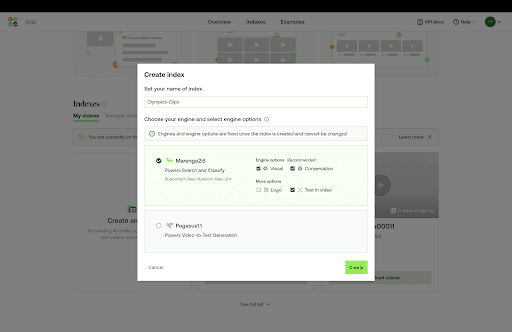
To do this, visit the Twelve Labs Playground.
Create a New Index and select
Marengo 2.6 (Embedding Engine), which is suitable for indexing and classification.Once all sports videos are uploaded to this index, we can proceed.
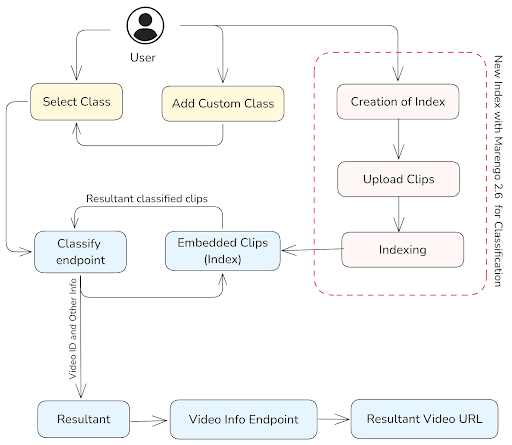
The following section details how to create and implement an Index ID step by step. Here's an overview of the general application workflow:
Users have two options: they can either select the type of sport they want to view from a multi-select menu or add their own custom classes.
The selected class is then sent to the classify endpoint, along with the
INDEX ID, to retrieve and classify all relevant video clips. Additional parameters, such asinclude_clips, are also sent to this endpoint.The response includes the Video ID, class, confidence level, start and end times, thumbnail URL, and more.
To obtain the video URL associated with the resulting Video ID, we need to access the video info endpoint.
Preparation Steps
Sign up and create an Index on the Twelve Labs Playground.
Choose the appropriate option for classification: Marengo 2.6 (Embedding Engine). This engine excels in video search and classification, providing a robust foundation for video understanding.
Upload sports video clips. If needed, use the sample clips provided for this tutorial: Sports Clips.
Obtain your API Key from the Twelve Labs Playground.
Retrieve your
INDEX_IDby opening the Index containing your Olympic clips. The ID is in the URL: https://playground.twelvelabs.io/indexes/{index_id}.Set up the .env file with your API Key and INDEX_ID, along with the main file.
With these steps completed, you're now ready to dive in and develop the application!
Twelvelabs_API=your_api_key_here
API_URL=your_api_url_here
INDEX_ID=your_index_id_here
Twelvelabs_API=your_api_key_here
API_URL=your_api_url_here
INDEX_ID=your_index_id_here
Walkthrough for Classification
1 - Importing, Validating, and Setting Up the Client
We begin by importing the necessary libraries and setting up environment variables to create the correct environment. To get started:
import os
import requests
import glob
import requests
from twelvelabs import TwelveLabs
from twelvelabs.models.task import Task
import dotenv


API_KEY=os.getenv("Twelvelabs_API")
API_URL=os.getenv("API_URL")
INDEX_ID=os.getenv("INDEX_ID")

client = TwelveLabs(api_key=API_KEY)

# URL of the /indexes endpoint
INDEXES_URL = f"{API_URL}/indexes"

# Setting headers variables

default_header = {
    "x-api-key": API_KEY
}
import os
import requests
import glob
import requests
from twelvelabs import TwelveLabs
from twelvelabs.models.task import Task
import dotenv


API_KEY=os.getenv("Twelvelabs_API")
API_URL=os.getenv("API_URL")
INDEX_ID=os.getenv("INDEX_ID")

client = TwelveLabs(api_key=API_KEY)

# URL of the /indexes endpoint
INDEXES_URL = f"{API_URL}/indexes"

# Setting headers variables

default_header = {
    "x-api-key": API_KEY
}
The dependencies have been imported, environment variables loaded correctly, and the API client initialized with the proper credentials. The base URL for accessing indexes and default headers for API requests have also been set up.
With this foundation in place, you're now ready to proceed with more specific classification tasks, such as creating indexes.
2 - Setting up the Classes
Below is the list of classes for classifying Olympic sports clips:
# Categories for the classification of the Olympics Sports

CLASSES = [
    {
        "name": "AquaticSports",
        "prompts": [
            "swimming competition",
            "diving event",
            "water polo match",
            "synchronized swimming",
            "open water swimming"
        ]
    },
    {
        "name": "AthleticEvents",
        "prompts": [
            "track and field",
            "marathon running",
            "long jump competition",
            "javelin throw",
            "high jump event"
        ]
    },
    {
        "name": "GymnasticsEvents",
        "prompts": [
            "artistic gymnastics",
            "rhythmic gymnastics",
            "trampoline gymnastics",
            "balance beam routine",
            "floor exercise performance"
        ]
    },
    {
        "name": "CombatSports",
        "prompts": [
            "boxing match",
            "judo competition",
            "wrestling bout",
            "taekwondo fight",
            "fencing duel"
        ]
    },
    {
        "name": "TeamSports",
        "prompts": [
            "basketball game",
            "volleyball match",
            "football (soccer) match",
            "handball game",
            "field hockey competition"
        ]
    },
    {
        "name": "CyclingSports",
        "prompts": [
            "road cycling race",
            "track cycling event",
            "mountain bike competition",
            "BMX racing",
            "cycling time trial"
        ]
    },
    {
        "name": "RacquetSports",
        "prompts": [
            "tennis match",
            "badminton game",
            "table tennis competition",
            "squash game",
            "tennis doubles match"
        ]
    },
    {
        "name": "RowingAndSailing",
        "prompts": [
            "rowing competition",
            "sailing race",
            "canoe sprint",
            "kayak event",
            "windsurfing competition"
        ]
    }
]
# Categories for the classification of the Olympics Sports

CLASSES = [
    {
        "name": "AquaticSports",
        "prompts": [
            "swimming competition",
            "diving event",
            "water polo match",
            "synchronized swimming",
            "open water swimming"
        ]
    },
    {
        "name": "AthleticEvents",
        "prompts": [
            "track and field",
            "marathon running",
            "long jump competition",
            "javelin throw",
            "high jump event"
        ]
    },
    {
        "name": "GymnasticsEvents",
        "prompts": [
            "artistic gymnastics",
            "rhythmic gymnastics",
            "trampoline gymnastics",
            "balance beam routine",
            "floor exercise performance"
        ]
    },
    {
        "name": "CombatSports",
        "prompts": [
            "boxing match",
            "judo competition",
            "wrestling bout",
            "taekwondo fight",
            "fencing duel"
        ]
    },
    {
        "name": "TeamSports",
        "prompts": [
            "basketball game",
            "volleyball match",
            "football (soccer) match",
            "handball game",
            "field hockey competition"
        ]
    },
    {
        "name": "CyclingSports",
        "prompts": [
            "road cycling race",
            "track cycling event",
            "mountain bike competition",
            "BMX racing",
            "cycling time trial"
        ]
    },
    {
        "name": "RacquetSports",
        "prompts": [
            "tennis match",
            "badminton game",
            "table tennis competition",
            "squash game",
            "tennis doubles match"
        ]
    },
    {
        "name": "RowingAndSailing",
        "prompts": [
            "rowing competition",
            "sailing race",
            "canoe sprint",
            "kayak event",
            "windsurfing competition"
        ]
    }
]
3 - Utility Function to Classify All Videos from a Particular Index
# Utility function
def print_page(page):
    for data in page:
        print(f"video_id={data.video_id}")
        for cl in data.classes:
            print(
                f"  name={cl.name} score={cl.score} duration_ratio={cl.duration_ratio} clips={cl.clips.model_dump_json(indent=2)}"
            )


result = client.classify.index(
    index_id=INDEX_ID,
    options=["visual"],
    classes=CLASSES,
    include_clips=True
)
# Utility function
def print_page(page):
    for data in page:
        print(f"video_id={data.video_id}")
        for cl in data.classes:
            print(
                f"  name={cl.name} score={cl.score} duration_ratio={cl.duration_ratio} clips={cl.clips.model_dump_json(indent=2)}"
            )


result = client.classify.index(
    index_id=INDEX_ID,
    options=["visual"],
    classes=CLASSES,
    include_clips=True
)
The client.classify.index() method is called to perform the classification. It uses the previously defined INDEX_ID, focuses on visual classification (options=["visual"]), and includes clip information in the results. The CLASSES parameter specifies the classes to be used for classification.
The print_page(result) function displays the classification results in a readable format. It iterates through the classification response, printing the video ID and detailed information about each classified class, including its name, score, duration ratio, and associated clips. This approach enables easy analysis of the classification output across all videos in the specified index.
4 - Function to Print the Result in a Structured and Clear Way
The print_classification_result() function displays TwelveLabs API classification results in a structured, readable format. It processes each video in the result set, presenting key information such as video ID, detected classes, and associated scores. For each class, it shows the overall score and duration ratio, followed by details of the top five clips, sorted by score in descending order. These clip details include start and end times, as well as the associated prompt in the CLASSES. The function also notes if there are additional clips beyond the top five.
def print_classification_result(result) -> None:

    for video_data in result.data:
        print(f"Video ID: {video_data.video_id}")
        print("=" * 50)


        for class_data in video_data.classes:
            print(f"  Class: {class_data.name}")
            print(f"  Score: {class_data.score:.2f}")
            print(f"  Duration Ratio: {class_data.duration_ratio:.2f}")
            print("  Clips:")


            sorted_clips = sorted(class_data.clips, key=lambda x: x.score, reverse=True)


            for i, clip in enumerate(sorted_clips[:5], 1):  # Print top 5 clips
                print(f"    {i}. Score: {clip.score:.2f}")
                print(f"       Start: {clip.start:.2f}s, End: {clip.end:.2f}s")
                print(f"       Prompt: {clip.prompt}")


            if len(sorted_clips) > 5:
                print(f"    ... and {len(sorted_clips) - 5} more clips")


            print("-" * 40)


        print("\n")


    print(f"Total results: {result.page_info.total_results}")
    print(f"Page expires at: {result.page_info.page_expired_at}")
    print(f"Next page token: {result.page_info.next_page_token}")
def print_classification_result(result) -> None:

    for video_data in result.data:
        print(f"Video ID: {video_data.video_id}")
        print("=" * 50)


        for class_data in video_data.classes:
            print(f"  Class: {class_data.name}")
            print(f"  Score: {class_data.score:.2f}")
            print(f"  Duration Ratio: {class_data.duration_ratio:.2f}")
            print("  Clips:")


            sorted_clips = sorted(class_data.clips, key=lambda x: x.score, reverse=True)


            for i, clip in enumerate(sorted_clips[:5], 1):  # Print top 5 clips
                print(f"    {i}. Score: {clip.score:.2f}")
                print(f"       Start: {clip.start:.2f}s, End: {clip.end:.2f}s")
                print(f"       Prompt: {clip.prompt}")


            if len(sorted_clips) > 5:
                print(f"    ... and {len(sorted_clips) - 5} more clips")


            print("-" * 40)


        print("\n")


    print(f"Total results: {result.page_info.total_results}")
    print(f"Page expires at: {result.page_info.page_expired_at}")
    print(f"Next page token: {result.page_info.next_page_token}")
The sample output for the above result is -
Video ID: 66c9b03be53394f4aaed82c1
==================================================
  Class: AquaticSports
  Score: 96.08
  Duration Ratio: 0.90
  Clips:
    1. Score: 85.74
       Start: 19.30s, End: 42.00s
       Prompt: water polo match
    2. Score: 85.38
       Start: 56.30s, End: 160.41s
       Prompt: water polo match
    3. Score: 85.25
       Start: 19.30s, End: 124.07s
       Prompt: synchronized swimming
    4. Score: 85.13
       Start: 0.00s, End: 24.83s
       Prompt: swimming competition
    5. Score: 85.08
       Start: 124.10s, End: 160.41s
       Prompt: synchronized swimming
    ... and 19 more clips
Video ID: 66c9b03be53394f4aaed82c1
==================================================
  Class: AquaticSports
  Score: 96.08
  Duration Ratio: 0.90
  Clips:
    1. Score: 85.74
       Start: 19.30s, End: 42.00s
       Prompt: water polo match
    2. Score: 85.38
       Start: 56.30s, End: 160.41s
       Prompt: water polo match
    3. Score: 85.25
       Start: 19.30s, End: 124.07s
       Prompt: synchronized swimming
    4. Score: 85.13
       Start: 0.00s, End: 24.83s
       Prompt: swimming competition
    5. Score: 85.08
       Start: 124.10s, End: 160.41s
       Prompt: synchronized swimming
    ... and 19 more clips
5 - Specific Class Categorization from All Videos in Index
This section focuses on the specific class categorization for "AquaticSports" across all videos in a given index. The process involves three main steps: defining a specific class with associated prompts, performing the classification, and displaying the results.
This targeted approach enables more accurate classification of videos containing aquatic sports content. The print_page() function serves as a utility tool, providing a straightforward output of the classification results.
CLASS = [
    {
        "name": "AquaticSports",
        "prompts": [
            "swimming competition",
            "diving event",
            "water polo match",
            "synchronized swimming",
            "open water swimming"
        ]
    }


]


def print_page(page):
    for data in page:
        print(f"video_id={data.video_id}")
        for cl in data.classes:
            print(
                f"  name={cl.name} score={cl.score} duration_ratio={cl.duration_ratio} detailed_scores={cl.detailed_scores.model_dump_json(indent=2)}"
            )
result = client.classify.index(
    index_id=INDEX_ID,
    options=["visual"],
    classes=CLASS,
    include_clips=True,
    show_detailed_score=True
)


print_classification_result(result)
CLASS = [
    {
        "name": "AquaticSports",
        "prompts": [
            "swimming competition",
            "diving event",
            "water polo match",
            "synchronized swimming",
            "open water swimming"
        ]
    }


]


def print_page(page):
    for data in page:
        print(f"video_id={data.video_id}")
        for cl in data.classes:
            print(
                f"  name={cl.name} score={cl.score} duration_ratio={cl.duration_ratio} detailed_scores={cl.detailed_scores.model_dump_json(indent=2)}"
            )
result = client.classify.index(
    index_id=INDEX_ID,
    options=["visual"],
    classes=CLASS,
    include_clips=True,
    show_detailed_score=True
)


print_classification_result(result)
The sample output section of the above snippet would provide the videos that fall under the specific CLASS.
Video ID: 66c9b03be53394f4aaed82c1
==================================================
  Class: AquaticSports
  Score: 96.08
  Duration Ratio: 0.90
  Clips:
    1. Score: 85.74
       Start: 19.30s, End: 42.00s
       Prompt: water polo match
    2. Score: 85.38
       Start: 56.30s, End: 160.41s
       Prompt: water polo match
    3. Score: 85.25
       Start: 19.30s, End: 124.07s
       Prompt: synchronized swimming
    4. Score: 85.13
       Start: 0.00s, End: 24.83s
       Prompt: swimming competition
    5. Score: 85.08
       Start: 124.10s, End: 160.41s
       Prompt: synchronized swimming
    ... and 19 more clips
Video ID: 66c9b03be53394f4aaed82c1
==================================================
  Class: AquaticSports
  Score: 96.08
  Duration Ratio: 0.90
  Clips:
    1. Score: 85.74
       Start: 19.30s, End: 42.00s
       Prompt: water polo match
    2. Score: 85.38
       Start: 56.30s, End: 160.41s
       Prompt: water polo match
    3. Score: 85.25
       Start: 19.30s, End: 124.07s
       Prompt: synchronized swimming
    4. Score: 85.13
       Start: 0.00s, End: 24.83s
       Prompt: swimming competition
    5. Score: 85.08
       Start: 124.10s, End: 160.41s
       Prompt: synchronized swimming
    ... and 19 more clips
Now that you know how to implement and interact with the classify endpoint using the Twelve Labs SDK, we can move forward with developing the full Streamlit application for users.
Creating the Streamlit Application
We chose to build the application on Streamlit due to its simplicity and rapid prototyping capabilities, making it ideal for the initial stages of development. Streamlit allows us to quickly create interactive web interfaces with minimal code, perfect for showcasing classification task results in a user-friendly manner. By leveraging the Twelve Labs SDK, we can create highly interactive web interfaces in minutes.
To get started with Streamlit, ensure you've set up your virtual environment and install Streamlit using the command:
pip install streamlit
pip install streamlit
For more information, check the official Streamlit documentation.
To build the Streamlit application, use the following file structure:
.
├── .env
├── app.py
├── requirements.txt
└── .gitignore
.
├── .env
├── app.py
├── requirements.txt
└── .gitignore
The requirements.txt file contains:
streamlit
twelvelabs
requests
python-dotenv
streamlit
twelvelabs
requests
python-dotenv
These dependencies cover the core functionality needed for the Olympic video clip classification application.
The main app.py file contains the following functionality:
get_initial_classes(): Sets up predefined Olympic sports categories.get_custom_classes()andadd_custom_class(): Manage user-defined categories to provide more flexibility.classify_videos(): Interacts with the TwelveLabs API to perform video classification based on selected categories.get_video_urls(): Retrieves video URLs for classified content.render_video(): Creates an embedded video player using HLS.js for smooth playback.
# Import Necessary Dependencies import streamlit as st from twelvelabs import TwelveLabs import requests import os from dotenv import load_dotenv load_dotenv() # Get the API Key from the Dashboard - https://playground.twelvelabs.io/dashboard/api-key API_KEY = os.getenv("API_KEY") # Create the INDEX ID as specified in the README.md and get the INDEX_ID INDEX_ID = os.getenv("INDEX_ID") client = TwelveLabs(api_key=API_KEY) # Background Setting of the Application page_element = """ <style> [data-testid="stAppViewContainer"] { background-image: url("https://wallpapercave.com/wp/wp3589963.jpg"); background-size: cover; } [data-testid="stHeader"] { background-color: rgba(0,0,0,0); } [data-testid="stToolbar"] { right: 2rem; background-image: url(""); background-size: cover; } </style> """ st.markdown(page_element, unsafe_allow_html=True) # Classes to classify the video into, there are categories name and # the prompts which specifc finds that factor to label that category @st.cache_data def get_initial_classes(): return [ {"name": "AquaticSports", "prompts": ["swimming competition", "diving event", "water polo match", "synchronized swimming", "open water swimming"]}, {"name": "AthleticEvents", "prompts": ["track and field", "marathon running", "long jump competition", "javelin throw", "high jump event"]}, {"name": "GymnasticsEvents", "prompts": ["artistic gymnastics", "rhythmic gymnastics", "trampoline gymnastics", "balance beam routine", "floor exercise performance"]}, {"name": "CombatSports", "prompts": ["boxing match", "judo competition", "wrestling bout", "taekwondo fight", "fencing duel"]}, {"name": "TeamSports", "prompts": ["basketball game", "volleyball match", "football (soccer) match", "handball game", "field hockey competition"]}, {"name": "CyclingSports", "prompts": ["road cycling race", "track cycling event", "mountain bike competition", "BMX racing", "cycling time trial"]}, {"name": "RacquetSports", "prompts": ["tennis match", "badminton game", "table tennis competition", "squash game", "tennis doubles match"]}, {"name": "RowingAndSailing", "prompts": ["rowing competition", "sailing race", "canoe sprint", "kayak event", "windsurfing competition"]} ] # Session State for the custom classes def get_custom_classes(): if 'custom_classes' not in st.session_state: st.session_state.custom_classes = [] return st.session_state.custom_classes # Utitlity Function to add the custom classes in app def add_custom_class(name, prompts): custom_classes = get_custom_classes() custom_classes.append({"name": name, "prompts": prompts}) st.session_state.custom_classes = custom_classes st.session_state.new_class_added = True # Utitlity Function to classify all the videos in the specified Index def classify_videos(selected_classes): return client.classify.index( index_id=INDEX_ID, options=["visual"], classes=selected_classes, include_clips=True ) # To get the video urls from the resultant video id def get_video_urls(video_ids): base_url = f"https://api.twelvelabs.io/v1.2/indexes/{INDEX_ID}/videos/{{}}" headers = {"x-api-key": API_KEY, "Content-Type": "application/json"} video_urls = {} for video_id in video_ids: try: response = requests.get(base_url.format(video_id), headers=headers) response.raise_for_status() data = response.json() if 'hls' in data and 'video_url' in data['hls']: video_urls[video_id] = data['hls']['video_url'] else: st.warning(f"No video URL found for video ID: {video_id}") except requests.exceptions.RequestException as e: st.error(f"Failed to get data for video ID: {video_id}. Error: {str(e)}") return video_urls # Utitlity Function to Render the Video by the resultant video url def render_video(video_url): hls_player = f""" <script src="https://cdn.jsdelivr.net/npm/hls.js@latest"></script> <div style="width: 100%; border-radius: 10px; overflow: hidden; box-shadow: 0 4px 6px rgba(0, 0, 0, 0.1);"> <video id="video" controls style="width: 100%; height: auto;"></video> </div> <script> var video = document.getElementById('video'); var videoSrc = "{video_url}"; if (Hls.isSupported()) {{ var hls = new Hls(); hls.loadSource(videoSrc); hls.attachMedia(video); hls.on(Hls.Events.MANIFEST_PARSED, function() {{ video.pause(); }}); }} else if (video.canPlayType('application/vnd.apple.mpegurl')) {{ video.src = videoSrc; video.addEventListener('loadedmetadata', function() {{ video.pause(); }}); }} </script> """ st.components.v1.html(hls_player, height=300)
# Import Necessary Dependencies import streamlit as st from twelvelabs import TwelveLabs import requests import os from dotenv import load_dotenv load_dotenv() # Get the API Key from the Dashboard - https://playground.twelvelabs.io/dashboard/api-key API_KEY = os.getenv("API_KEY") # Create the INDEX ID as specified in the README.md and get the INDEX_ID INDEX_ID = os.getenv("INDEX_ID") client = TwelveLabs(api_key=API_KEY) # Background Setting of the Application page_element = """ <style> [data-testid="stAppViewContainer"] { background-image: url("https://wallpapercave.com/wp/wp3589963.jpg"); background-size: cover; } [data-testid="stHeader"] { background-color: rgba(0,0,0,0); } [data-testid="stToolbar"] { right: 2rem; background-image: url(""); background-size: cover; } </style> """ st.markdown(page_element, unsafe_allow_html=True) # Classes to classify the video into, there are categories name and # the prompts which specifc finds that factor to label that category @st.cache_data def get_initial_classes(): return [ {"name": "AquaticSports", "prompts": ["swimming competition", "diving event", "water polo match", "synchronized swimming", "open water swimming"]}, {"name": "AthleticEvents", "prompts": ["track and field", "marathon running", "long jump competition", "javelin throw", "high jump event"]}, {"name": "GymnasticsEvents", "prompts": ["artistic gymnastics", "rhythmic gymnastics", "trampoline gymnastics", "balance beam routine", "floor exercise performance"]}, {"name": "CombatSports", "prompts": ["boxing match", "judo competition", "wrestling bout", "taekwondo fight", "fencing duel"]}, {"name": "TeamSports", "prompts": ["basketball game", "volleyball match", "football (soccer) match", "handball game", "field hockey competition"]}, {"name": "CyclingSports", "prompts": ["road cycling race", "track cycling event", "mountain bike competition", "BMX racing", "cycling time trial"]}, {"name": "RacquetSports", "prompts": ["tennis match", "badminton game", "table tennis competition", "squash game", "tennis doubles match"]}, {"name": "RowingAndSailing", "prompts": ["rowing competition", "sailing race", "canoe sprint", "kayak event", "windsurfing competition"]} ] # Session State for the custom classes def get_custom_classes(): if 'custom_classes' not in st.session_state: st.session_state.custom_classes = [] return st.session_state.custom_classes # Utitlity Function to add the custom classes in app def add_custom_class(name, prompts): custom_classes = get_custom_classes() custom_classes.append({"name": name, "prompts": prompts}) st.session_state.custom_classes = custom_classes st.session_state.new_class_added = True # Utitlity Function to classify all the videos in the specified Index def classify_videos(selected_classes): return client.classify.index( index_id=INDEX_ID, options=["visual"], classes=selected_classes, include_clips=True ) # To get the video urls from the resultant video id def get_video_urls(video_ids): base_url = f"https://api.twelvelabs.io/v1.2/indexes/{INDEX_ID}/videos/{{}}" headers = {"x-api-key": API_KEY, "Content-Type": "application/json"} video_urls = {} for video_id in video_ids: try: response = requests.get(base_url.format(video_id), headers=headers) response.raise_for_status() data = response.json() if 'hls' in data and 'video_url' in data['hls']: video_urls[video_id] = data['hls']['video_url'] else: st.warning(f"No video URL found for video ID: {video_id}") except requests.exceptions.RequestException as e: st.error(f"Failed to get data for video ID: {video_id}. Error: {str(e)}") return video_urls # Utitlity Function to Render the Video by the resultant video url def render_video(video_url): hls_player = f""" <script src="https://cdn.jsdelivr.net/npm/hls.js@latest"></script> <div style="width: 100%; border-radius: 10px; overflow: hidden; box-shadow: 0 4px 6px rgba(0, 0, 0, 0.1);"> <video id="video" controls style="width: 100%; height: auto;"></video> </div> <script> var video = document.getElementById('video'); var videoSrc = "{video_url}"; if (Hls.isSupported()) {{ var hls = new Hls(); hls.loadSource(videoSrc); hls.attachMedia(video); hls.on(Hls.Events.MANIFEST_PARSED, function() {{ video.pause(); }}); }} else if (video.canPlayType('application/vnd.apple.mpegurl')) {{ video.src = videoSrc; video.addEventListener('loadedmetadata', function() {{ video.pause(); }}); }} </script> """ st.components.v1.html(hls_player, height=300)
The get_initial_classes() function returns a static list of predefined categories for Olympic sports. Streamlit caches this data, ensuring the function is executed only once and its result is saved in memory. Subsequent calls to this function return the cached result, avoiding repeated executions.
The get_initial_classes() function is cached, while get_custom_classes() is not. Custom classes, stored in Streamlit's session state, are expected to change during the application's runtime.
get_video_urls() takes a list of video IDs and makes API calls to TwelveLabs to retrieve corresponding HLS (HTTP Live Streaming) URLs, handling potential errors and missing URLs.
render_video() creates an HTML5 video player with HLS.js support, compatible with multiple browsers and devices. It falls back to native HLS if necessary.
In classify_videos(), user-selected classes are used to classify videos in the specified index using the TwelveLabs client. This function focuses on visual classification and includes clip information in the results.
# Main Function def main(): # Basic Markdown Setup for the Application st.markdown(""" <style> .big-font { font-size: 40px !important; font-weight: bold; color: #000000; text-align: center; margin-bottom: 30px; } .subheader { font-size: 24px; font-weight: bold; color: #424242; margin-top: 20px; margin-bottom: 10px; } .stButton>button { width: 100%; } .video-info { background-color: #f0f0f0; border-radius: 10px; padding: 15px; margin-bottom: 20px; } .custom-box { background-color: #f9f9f9; border-radius: 10px; padding: 20px; margin-bottom: 20px; box-shadow: 0 2px 4px rgba(0,0,0,0.1); } .stTabs [data-baseweb="tab-list"] { gap: 24px; } .stTabs [data-baseweb="tab"] { height: 50px; white-space: pre-wrap; background-color: #f0f2f6; border-radius: 4px 4px 0px 0px; gap: 1px; padding-top: 10px; padding-bottom: 10px; } .stTabs [data-baseweb="tab-list"] button[aria-selected="true"] { background-color: #e8eaed; } </style> """, unsafe_allow_html=True) st.markdown('<p class="big-font">Olympics Classification w/t Twelve Labs</p>', unsafe_allow_html=True) # Updation of the classes CLASSES = get_initial_classes() + get_custom_classes() # Nav Tabs Creation tab1, tab2 = st.tabs(["Select Classes", "Add Custom Class"]) with tab1: st.markdown('<p class="subheader">Select Classes</p>', unsafe_allow_html=True) with st.container(): class_names = [cls["name"] for cls in CLASSES] # Multiselect option from the CLASSES selected_classes = st.multiselect("Choose one or more Olympic sports categories:", class_names) if st.button("Classify Videos", key="classify_button"): if selected_classes: with st.spinner("Classifying videos..."): selected_classes_with_prompts = [cls for cls in CLASSES if cls["name"] in selected_classes] res = classify_videos(selected_classes_with_prompts) video_ids = [data.video_id for data in res.data] # Retrieving the video urls from the resultant video which matches to the selected CLASSES video_urls = get_video_urls(video_ids) st.markdown('<p class="subheader">Classified Videos</p>', unsafe_allow_html=True) # Iterating over to showcase the information for every resulatant video for i, video_data in enumerate(res.data, 1): video_id = video_data.video_id video_url = video_urls.get(video_id, "URL not found") st.markdown(f"### Video {i}") st.markdown('<div class="video-info">', unsafe_allow_html=True) st.markdown(f"**Video ID:** {video_id}") for class_data in video_data.classes: st.markdown(f""" **Class:** {class_data.name} - Score: {class_data.score:.2f} - Duration Ratio: {class_data.duration_ratio:.2f} """) if video_url != "URL not found": render_video(video_url) else: st.warning("Video URL not available. Unable to render video.") st.markdown("---") st.success(f"Total videos classified: {len(res.data)}") else: st.warning("Please select at least one class.") st.markdown('</div>', unsafe_allow_html=True) # Nav Tab for the addition of the Custom Classes to select from with tab2: st.markdown('<p class="subheader">Add Custom Class</p>', unsafe_allow_html=True) with st.container(): custom_class_name = st.text_input("Enter custom class name") custom_class_prompts = st.text_input("Enter custom class prompts (comma-separated)") if st.button("Add Custom Class"): if custom_class_name and custom_class_prompts: add_custom_class(custom_class_name, custom_class_prompts.split(',')) st.success(f"Custom class '{custom_class_name}' added successfully!") st.experimental_rerun() else: st.warning("Please enter both class name and prompts.") st.markdown('</div>', unsafe_allow_html=True) if st.session_state.get('new_class_added', False): st.session_state.new_class_added = False st.experimental_rerun() if __name__ == "__main__": main()
# Main Function def main(): # Basic Markdown Setup for the Application st.markdown(""" <style> .big-font { font-size: 40px !important; font-weight: bold; color: #000000; text-align: center; margin-bottom: 30px; } .subheader { font-size: 24px; font-weight: bold; color: #424242; margin-top: 20px; margin-bottom: 10px; } .stButton>button { width: 100%; } .video-info { background-color: #f0f0f0; border-radius: 10px; padding: 15px; margin-bottom: 20px; } .custom-box { background-color: #f9f9f9; border-radius: 10px; padding: 20px; margin-bottom: 20px; box-shadow: 0 2px 4px rgba(0,0,0,0.1); } .stTabs [data-baseweb="tab-list"] { gap: 24px; } .stTabs [data-baseweb="tab"] { height: 50px; white-space: pre-wrap; background-color: #f0f2f6; border-radius: 4px 4px 0px 0px; gap: 1px; padding-top: 10px; padding-bottom: 10px; } .stTabs [data-baseweb="tab-list"] button[aria-selected="true"] { background-color: #e8eaed; } </style> """, unsafe_allow_html=True) st.markdown('<p class="big-font">Olympics Classification w/t Twelve Labs</p>', unsafe_allow_html=True) # Updation of the classes CLASSES = get_initial_classes() + get_custom_classes() # Nav Tabs Creation tab1, tab2 = st.tabs(["Select Classes", "Add Custom Class"]) with tab1: st.markdown('<p class="subheader">Select Classes</p>', unsafe_allow_html=True) with st.container(): class_names = [cls["name"] for cls in CLASSES] # Multiselect option from the CLASSES selected_classes = st.multiselect("Choose one or more Olympic sports categories:", class_names) if st.button("Classify Videos", key="classify_button"): if selected_classes: with st.spinner("Classifying videos..."): selected_classes_with_prompts = [cls for cls in CLASSES if cls["name"] in selected_classes] res = classify_videos(selected_classes_with_prompts) video_ids = [data.video_id for data in res.data] # Retrieving the video urls from the resultant video which matches to the selected CLASSES video_urls = get_video_urls(video_ids) st.markdown('<p class="subheader">Classified Videos</p>', unsafe_allow_html=True) # Iterating over to showcase the information for every resulatant video for i, video_data in enumerate(res.data, 1): video_id = video_data.video_id video_url = video_urls.get(video_id, "URL not found") st.markdown(f"### Video {i}") st.markdown('<div class="video-info">', unsafe_allow_html=True) st.markdown(f"**Video ID:** {video_id}") for class_data in video_data.classes: st.markdown(f""" **Class:** {class_data.name} - Score: {class_data.score:.2f} - Duration Ratio: {class_data.duration_ratio:.2f} """) if video_url != "URL not found": render_video(video_url) else: st.warning("Video URL not available. Unable to render video.") st.markdown("---") st.success(f"Total videos classified: {len(res.data)}") else: st.warning("Please select at least one class.") st.markdown('</div>', unsafe_allow_html=True) # Nav Tab for the addition of the Custom Classes to select from with tab2: st.markdown('<p class="subheader">Add Custom Class</p>', unsafe_allow_html=True) with st.container(): custom_class_name = st.text_input("Enter custom class name") custom_class_prompts = st.text_input("Enter custom class prompts (comma-separated)") if st.button("Add Custom Class"): if custom_class_name and custom_class_prompts: add_custom_class(custom_class_name, custom_class_prompts.split(',')) st.success(f"Custom class '{custom_class_name}' added successfully!") st.experimental_rerun() else: st.warning("Please enter both class name and prompts.") st.markdown('</div>', unsafe_allow_html=True) if st.session_state.get('new_class_added', False): st.session_state.new_class_added = False st.experimental_rerun() if __name__ == "__main__": main()
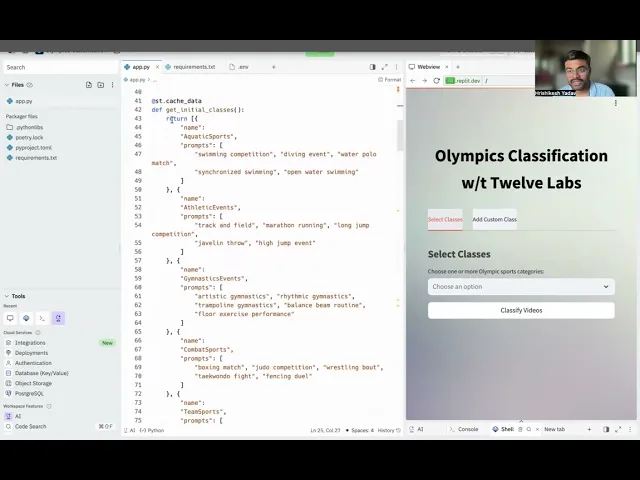
The main function of the application focuses heavily on CSS and layout, as well as the correct sequence of instructions. Users can add new classification categories through the "Add Custom Class" tab under the video classification tab. The "Select Classes" tab allows users to choose from predefined and custom categories.
When users click the "Classify Videos" button, the application:
Retrieves the selected classes.
Calls the TwelveLabs API to classify videos (classify_videos() function).
Fetches video URLs for the classified videos.
Displays the classification results and renders the videos.
The final application results—

More Ideas to Experiment with the Tutorial
Understanding the working procedure and development of the application prepares you to implement your innovative ideas and make an impact in the world. Here are some use case ideas similar to the tutorial blog that you can build on:
🔍 Video Search Engine: Create a searchable database of video content, allowing users to find specific scenes or topics within large video collections.
🎥 Security Footage Analyzer: Detect and categorize specific events or behaviors in security camera footage.
💃 Dance Move Classifier: Identify and categorize different dance styles or specific moves from dance videos.
Conclusion
This blog post aims to provide you with a detailed explanation of the working procedure and how the application is built using the classification task, leveraging Twelve Labs. Thank you for following along with the tutorial. We look forward to your ideas on improving the user experience and solving various problems.
Ever dreamed of winning a medal for organizing Olympic video footage? 🥇 Well, now's your chance to stand on the podium!
The Olympics Video Clips Classification Application aims to streamline the tedious process of categorizing sports footage. Using Twelve Labs' Marengo 2.6 Embedding Model, this app swiftly classifies Olympic sports from video clips.
By analyzing on-screen text, conversations, and visuals, the application categorizes video clips with ease. This tutorial will guide you through creating a Streamlit application that revolutionizes how scholars, sports enthusiasts, and broadcasters interact with Olympic content. You'll learn to build an app that classifies videos based on user-defined categories. A detailed demonstration video of the application is provided below.
You can explore the demo of the application here: Olympics Application. You can also play with it via this Replit template.
Prerequisite
Generate an API key by signing up at the Twelve Labs Playground.
Find the repository for the notebooks and this application on GitHub.
The Streamlit application uses Python, HTML, and JavaScript.
Working of the Application
This section outlines the application flow for classifying Olympic video clips.
The application uses a classification search engine, which has various potential uses. In this task, we'll focus on classifying and retrieving Olympic sports video clips. The first crucial step is creating an index.
To do this, visit the Twelve Labs Playground.
Create a New Index and select
Marengo 2.6 (Embedding Engine), which is suitable for indexing and classification.Once all sports videos are uploaded to this index, we can proceed.
The following section details how to create and implement an Index ID step by step. Here's an overview of the general application workflow:
Users have two options: they can either select the type of sport they want to view from a multi-select menu or add their own custom classes.
The selected class is then sent to the classify endpoint, along with the
INDEX ID, to retrieve and classify all relevant video clips. Additional parameters, such asinclude_clips, are also sent to this endpoint.The response includes the Video ID, class, confidence level, start and end times, thumbnail URL, and more.
To obtain the video URL associated with the resulting Video ID, we need to access the video info endpoint.
Preparation Steps
Sign up and create an Index on the Twelve Labs Playground.
Choose the appropriate option for classification: Marengo 2.6 (Embedding Engine). This engine excels in video search and classification, providing a robust foundation for video understanding.
Upload sports video clips. If needed, use the sample clips provided for this tutorial: Sports Clips.
Obtain your API Key from the Twelve Labs Playground.
Retrieve your
INDEX_IDby opening the Index containing your Olympic clips. The ID is in the URL: https://playground.twelvelabs.io/indexes/{index_id}.Set up the .env file with your API Key and INDEX_ID, along with the main file.
With these steps completed, you're now ready to dive in and develop the application!
Twelvelabs_API=your_api_key_here
API_URL=your_api_url_here
INDEX_ID=your_index_id_here
Walkthrough for Classification
1 - Importing, Validating, and Setting Up the Client
We begin by importing the necessary libraries and setting up environment variables to create the correct environment. To get started:
import os
import requests
import glob
import requests
from twelvelabs import TwelveLabs
from twelvelabs.models.task import Task
import dotenv


API_KEY=os.getenv("Twelvelabs_API")
API_URL=os.getenv("API_URL")
INDEX_ID=os.getenv("INDEX_ID")

client = TwelveLabs(api_key=API_KEY)

# URL of the /indexes endpoint
INDEXES_URL = f"{API_URL}/indexes"

# Setting headers variables

default_header = {
    "x-api-key": API_KEY
}
The dependencies have been imported, environment variables loaded correctly, and the API client initialized with the proper credentials. The base URL for accessing indexes and default headers for API requests have also been set up.
With this foundation in place, you're now ready to proceed with more specific classification tasks, such as creating indexes.
2 - Setting up the Classes
Below is the list of classes for classifying Olympic sports clips:
# Categories for the classification of the Olympics Sports

CLASSES = [
    {
        "name": "AquaticSports",
        "prompts": [
            "swimming competition",
            "diving event",
            "water polo match",
            "synchronized swimming",
            "open water swimming"
        ]
    },
    {
        "name": "AthleticEvents",
        "prompts": [
            "track and field",
            "marathon running",
            "long jump competition",
            "javelin throw",
            "high jump event"
        ]
    },
    {
        "name": "GymnasticsEvents",
        "prompts": [
            "artistic gymnastics",
            "rhythmic gymnastics",
            "trampoline gymnastics",
            "balance beam routine",
            "floor exercise performance"
        ]
    },
    {
        "name": "CombatSports",
        "prompts": [
            "boxing match",
            "judo competition",
            "wrestling bout",
            "taekwondo fight",
            "fencing duel"
        ]
    },
    {
        "name": "TeamSports",
        "prompts": [
            "basketball game",
            "volleyball match",
            "football (soccer) match",
            "handball game",
            "field hockey competition"
        ]
    },
    {
        "name": "CyclingSports",
        "prompts": [
            "road cycling race",
            "track cycling event",
            "mountain bike competition",
            "BMX racing",
            "cycling time trial"
        ]
    },
    {
        "name": "RacquetSports",
        "prompts": [
            "tennis match",
            "badminton game",
            "table tennis competition",
            "squash game",
            "tennis doubles match"
        ]
    },
    {
        "name": "RowingAndSailing",
        "prompts": [
            "rowing competition",
            "sailing race",
            "canoe sprint",
            "kayak event",
            "windsurfing competition"
        ]
    }
]
3 - Utility Function to Classify All Videos from a Particular Index
# Utility function
def print_page(page):
    for data in page:
        print(f"video_id={data.video_id}")
        for cl in data.classes:
            print(
                f"  name={cl.name} score={cl.score} duration_ratio={cl.duration_ratio} clips={cl.clips.model_dump_json(indent=2)}"
            )


result = client.classify.index(
    index_id=INDEX_ID,
    options=["visual"],
    classes=CLASSES,
    include_clips=True
)
The client.classify.index() method is called to perform the classification. It uses the previously defined INDEX_ID, focuses on visual classification (options=["visual"]), and includes clip information in the results. The CLASSES parameter specifies the classes to be used for classification.
The print_page(result) function displays the classification results in a readable format. It iterates through the classification response, printing the video ID and detailed information about each classified class, including its name, score, duration ratio, and associated clips. This approach enables easy analysis of the classification output across all videos in the specified index.
4 - Function to Print the Result in a Structured and Clear Way
The print_classification_result() function displays TwelveLabs API classification results in a structured, readable format. It processes each video in the result set, presenting key information such as video ID, detected classes, and associated scores. For each class, it shows the overall score and duration ratio, followed by details of the top five clips, sorted by score in descending order. These clip details include start and end times, as well as the associated prompt in the CLASSES. The function also notes if there are additional clips beyond the top five.
def print_classification_result(result) -> None:

    for video_data in result.data:
        print(f"Video ID: {video_data.video_id}")
        print("=" * 50)


        for class_data in video_data.classes:
            print(f"  Class: {class_data.name}")
            print(f"  Score: {class_data.score:.2f}")
            print(f"  Duration Ratio: {class_data.duration_ratio:.2f}")
            print("  Clips:")


            sorted_clips = sorted(class_data.clips, key=lambda x: x.score, reverse=True)


            for i, clip in enumerate(sorted_clips[:5], 1):  # Print top 5 clips
                print(f"    {i}. Score: {clip.score:.2f}")
                print(f"       Start: {clip.start:.2f}s, End: {clip.end:.2f}s")
                print(f"       Prompt: {clip.prompt}")


            if len(sorted_clips) > 5:
                print(f"    ... and {len(sorted_clips) - 5} more clips")


            print("-" * 40)


        print("\n")


    print(f"Total results: {result.page_info.total_results}")
    print(f"Page expires at: {result.page_info.page_expired_at}")
    print(f"Next page token: {result.page_info.next_page_token}")
The sample output for the above result is -
Video ID: 66c9b03be53394f4aaed82c1
==================================================
  Class: AquaticSports
  Score: 96.08
  Duration Ratio: 0.90
  Clips:
    1. Score: 85.74
       Start: 19.30s, End: 42.00s
       Prompt: water polo match
    2. Score: 85.38
       Start: 56.30s, End: 160.41s
       Prompt: water polo match
    3. Score: 85.25
       Start: 19.30s, End: 124.07s
       Prompt: synchronized swimming
    4. Score: 85.13
       Start: 0.00s, End: 24.83s
       Prompt: swimming competition
    5. Score: 85.08
       Start: 124.10s, End: 160.41s
       Prompt: synchronized swimming
    ... and 19 more clips
5 - Specific Class Categorization from All Videos in Index
This section focuses on the specific class categorization for "AquaticSports" across all videos in a given index. The process involves three main steps: defining a specific class with associated prompts, performing the classification, and displaying the results.
This targeted approach enables more accurate classification of videos containing aquatic sports content. The print_page() function serves as a utility tool, providing a straightforward output of the classification results.
CLASS = [
    {
        "name": "AquaticSports",
        "prompts": [
            "swimming competition",
            "diving event",
            "water polo match",
            "synchronized swimming",
            "open water swimming"
        ]
    }


]


def print_page(page):
    for data in page:
        print(f"video_id={data.video_id}")
        for cl in data.classes:
            print(
                f"  name={cl.name} score={cl.score} duration_ratio={cl.duration_ratio} detailed_scores={cl.detailed_scores.model_dump_json(indent=2)}"
            )
result = client.classify.index(
    index_id=INDEX_ID,
    options=["visual"],
    classes=CLASS,
    include_clips=True,
    show_detailed_score=True
)


print_classification_result(result)
The sample output section of the above snippet would provide the videos that fall under the specific CLASS.
Video ID: 66c9b03be53394f4aaed82c1
==================================================
  Class: AquaticSports
  Score: 96.08
  Duration Ratio: 0.90
  Clips:
    1. Score: 85.74
       Start: 19.30s, End: 42.00s
       Prompt: water polo match
    2. Score: 85.38
       Start: 56.30s, End: 160.41s
       Prompt: water polo match
    3. Score: 85.25
       Start: 19.30s, End: 124.07s
       Prompt: synchronized swimming
    4. Score: 85.13
       Start: 0.00s, End: 24.83s
       Prompt: swimming competition
    5. Score: 85.08
       Start: 124.10s, End: 160.41s
       Prompt: synchronized swimming
    ... and 19 more clips
Now that you know how to implement and interact with the classify endpoint using the Twelve Labs SDK, we can move forward with developing the full Streamlit application for users.
Creating the Streamlit Application
We chose to build the application on Streamlit due to its simplicity and rapid prototyping capabilities, making it ideal for the initial stages of development. Streamlit allows us to quickly create interactive web interfaces with minimal code, perfect for showcasing classification task results in a user-friendly manner. By leveraging the Twelve Labs SDK, we can create highly interactive web interfaces in minutes.
To get started with Streamlit, ensure you've set up your virtual environment and install Streamlit using the command:
pip install streamlit
For more information, check the official Streamlit documentation.
To build the Streamlit application, use the following file structure:
.
├── .env
├── app.py
├── requirements.txt
└── .gitignore
The requirements.txt file contains:
streamlit
twelvelabs
requests
python-dotenv
These dependencies cover the core functionality needed for the Olympic video clip classification application.
The main app.py file contains the following functionality:
get_initial_classes(): Sets up predefined Olympic sports categories.get_custom_classes()andadd_custom_class(): Manage user-defined categories to provide more flexibility.classify_videos(): Interacts with the TwelveLabs API to perform video classification based on selected categories.get_video_urls(): Retrieves video URLs for classified content.render_video(): Creates an embedded video player using HLS.js for smooth playback.
# Import Necessary Dependencies import streamlit as st from twelvelabs import TwelveLabs import requests import os from dotenv import load_dotenv load_dotenv() # Get the API Key from the Dashboard - https://playground.twelvelabs.io/dashboard/api-key API_KEY = os.getenv("API_KEY") # Create the INDEX ID as specified in the README.md and get the INDEX_ID INDEX_ID = os.getenv("INDEX_ID") client = TwelveLabs(api_key=API_KEY) # Background Setting of the Application page_element = """ <style> [data-testid="stAppViewContainer"] { background-image: url("https://wallpapercave.com/wp/wp3589963.jpg"); background-size: cover; } [data-testid="stHeader"] { background-color: rgba(0,0,0,0); } [data-testid="stToolbar"] { right: 2rem; background-image: url(""); background-size: cover; } </style> """ st.markdown(page_element, unsafe_allow_html=True) # Classes to classify the video into, there are categories name and # the prompts which specifc finds that factor to label that category @st.cache_data def get_initial_classes(): return [ {"name": "AquaticSports", "prompts": ["swimming competition", "diving event", "water polo match", "synchronized swimming", "open water swimming"]}, {"name": "AthleticEvents", "prompts": ["track and field", "marathon running", "long jump competition", "javelin throw", "high jump event"]}, {"name": "GymnasticsEvents", "prompts": ["artistic gymnastics", "rhythmic gymnastics", "trampoline gymnastics", "balance beam routine", "floor exercise performance"]}, {"name": "CombatSports", "prompts": ["boxing match", "judo competition", "wrestling bout", "taekwondo fight", "fencing duel"]}, {"name": "TeamSports", "prompts": ["basketball game", "volleyball match", "football (soccer) match", "handball game", "field hockey competition"]}, {"name": "CyclingSports", "prompts": ["road cycling race", "track cycling event", "mountain bike competition", "BMX racing", "cycling time trial"]}, {"name": "RacquetSports", "prompts": ["tennis match", "badminton game", "table tennis competition", "squash game", "tennis doubles match"]}, {"name": "RowingAndSailing", "prompts": ["rowing competition", "sailing race", "canoe sprint", "kayak event", "windsurfing competition"]} ] # Session State for the custom classes def get_custom_classes(): if 'custom_classes' not in st.session_state: st.session_state.custom_classes = [] return st.session_state.custom_classes # Utitlity Function to add the custom classes in app def add_custom_class(name, prompts): custom_classes = get_custom_classes() custom_classes.append({"name": name, "prompts": prompts}) st.session_state.custom_classes = custom_classes st.session_state.new_class_added = True # Utitlity Function to classify all the videos in the specified Index def classify_videos(selected_classes): return client.classify.index( index_id=INDEX_ID, options=["visual"], classes=selected_classes, include_clips=True ) # To get the video urls from the resultant video id def get_video_urls(video_ids): base_url = f"https://api.twelvelabs.io/v1.2/indexes/{INDEX_ID}/videos/{{}}" headers = {"x-api-key": API_KEY, "Content-Type": "application/json"} video_urls = {} for video_id in video_ids: try: response = requests.get(base_url.format(video_id), headers=headers) response.raise_for_status() data = response.json() if 'hls' in data and 'video_url' in data['hls']: video_urls[video_id] = data['hls']['video_url'] else: st.warning(f"No video URL found for video ID: {video_id}") except requests.exceptions.RequestException as e: st.error(f"Failed to get data for video ID: {video_id}. Error: {str(e)}") return video_urls # Utitlity Function to Render the Video by the resultant video url def render_video(video_url): hls_player = f""" <script src="https://cdn.jsdelivr.net/npm/hls.js@latest"></script> <div style="width: 100%; border-radius: 10px; overflow: hidden; box-shadow: 0 4px 6px rgba(0, 0, 0, 0.1);"> <video id="video" controls style="width: 100%; height: auto;"></video> </div> <script> var video = document.getElementById('video'); var videoSrc = "{video_url}"; if (Hls.isSupported()) {{ var hls = new Hls(); hls.loadSource(videoSrc); hls.attachMedia(video); hls.on(Hls.Events.MANIFEST_PARSED, function() {{ video.pause(); }}); }} else if (video.canPlayType('application/vnd.apple.mpegurl')) {{ video.src = videoSrc; video.addEventListener('loadedmetadata', function() {{ video.pause(); }}); }} </script> """ st.components.v1.html(hls_player, height=300)
The get_initial_classes() function returns a static list of predefined categories for Olympic sports. Streamlit caches this data, ensuring the function is executed only once and its result is saved in memory. Subsequent calls to this function return the cached result, avoiding repeated executions.
The get_initial_classes() function is cached, while get_custom_classes() is not. Custom classes, stored in Streamlit's session state, are expected to change during the application's runtime.
get_video_urls() takes a list of video IDs and makes API calls to TwelveLabs to retrieve corresponding HLS (HTTP Live Streaming) URLs, handling potential errors and missing URLs.
render_video() creates an HTML5 video player with HLS.js support, compatible with multiple browsers and devices. It falls back to native HLS if necessary.
In classify_videos(), user-selected classes are used to classify videos in the specified index using the TwelveLabs client. This function focuses on visual classification and includes clip information in the results.
# Main Function def main(): # Basic Markdown Setup for the Application st.markdown(""" <style> .big-font { font-size: 40px !important; font-weight: bold; color: #000000; text-align: center; margin-bottom: 30px; } .subheader { font-size: 24px; font-weight: bold; color: #424242; margin-top: 20px; margin-bottom: 10px; } .stButton>button { width: 100%; } .video-info { background-color: #f0f0f0; border-radius: 10px; padding: 15px; margin-bottom: 20px; } .custom-box { background-color: #f9f9f9; border-radius: 10px; padding: 20px; margin-bottom: 20px; box-shadow: 0 2px 4px rgba(0,0,0,0.1); } .stTabs [data-baseweb="tab-list"] { gap: 24px; } .stTabs [data-baseweb="tab"] { height: 50px; white-space: pre-wrap; background-color: #f0f2f6; border-radius: 4px 4px 0px 0px; gap: 1px; padding-top: 10px; padding-bottom: 10px; } .stTabs [data-baseweb="tab-list"] button[aria-selected="true"] { background-color: #e8eaed; } </style> """, unsafe_allow_html=True) st.markdown('<p class="big-font">Olympics Classification w/t Twelve Labs</p>', unsafe_allow_html=True) # Updation of the classes CLASSES = get_initial_classes() + get_custom_classes() # Nav Tabs Creation tab1, tab2 = st.tabs(["Select Classes", "Add Custom Class"]) with tab1: st.markdown('<p class="subheader">Select Classes</p>', unsafe_allow_html=True) with st.container(): class_names = [cls["name"] for cls in CLASSES] # Multiselect option from the CLASSES selected_classes = st.multiselect("Choose one or more Olympic sports categories:", class_names) if st.button("Classify Videos", key="classify_button"): if selected_classes: with st.spinner("Classifying videos..."): selected_classes_with_prompts = [cls for cls in CLASSES if cls["name"] in selected_classes] res = classify_videos(selected_classes_with_prompts) video_ids = [data.video_id for data in res.data] # Retrieving the video urls from the resultant video which matches to the selected CLASSES video_urls = get_video_urls(video_ids) st.markdown('<p class="subheader">Classified Videos</p>', unsafe_allow_html=True) # Iterating over to showcase the information for every resulatant video for i, video_data in enumerate(res.data, 1): video_id = video_data.video_id video_url = video_urls.get(video_id, "URL not found") st.markdown(f"### Video {i}") st.markdown('<div class="video-info">', unsafe_allow_html=True) st.markdown(f"**Video ID:** {video_id}") for class_data in video_data.classes: st.markdown(f""" **Class:** {class_data.name} - Score: {class_data.score:.2f} - Duration Ratio: {class_data.duration_ratio:.2f} """) if video_url != "URL not found": render_video(video_url) else: st.warning("Video URL not available. Unable to render video.") st.markdown("---") st.success(f"Total videos classified: {len(res.data)}") else: st.warning("Please select at least one class.") st.markdown('</div>', unsafe_allow_html=True) # Nav Tab for the addition of the Custom Classes to select from with tab2: st.markdown('<p class="subheader">Add Custom Class</p>', unsafe_allow_html=True) with st.container(): custom_class_name = st.text_input("Enter custom class name") custom_class_prompts = st.text_input("Enter custom class prompts (comma-separated)") if st.button("Add Custom Class"): if custom_class_name and custom_class_prompts: add_custom_class(custom_class_name, custom_class_prompts.split(',')) st.success(f"Custom class '{custom_class_name}' added successfully!") st.experimental_rerun() else: st.warning("Please enter both class name and prompts.") st.markdown('</div>', unsafe_allow_html=True) if st.session_state.get('new_class_added', False): st.session_state.new_class_added = False st.experimental_rerun() if __name__ == "__main__": main()
The main function of the application focuses heavily on CSS and layout, as well as the correct sequence of instructions. Users can add new classification categories through the "Add Custom Class" tab under the video classification tab. The "Select Classes" tab allows users to choose from predefined and custom categories.
When users click the "Classify Videos" button, the application:
Retrieves the selected classes.
Calls the TwelveLabs API to classify videos (classify_videos() function).
Fetches video URLs for the classified videos.
Displays the classification results and renders the videos.
The final application results—
More Ideas to Experiment with the Tutorial
Understanding the working procedure and development of the application prepares you to implement your innovative ideas and make an impact in the world. Here are some use case ideas similar to the tutorial blog that you can build on:
🔍 Video Search Engine: Create a searchable database of video content, allowing users to find specific scenes or topics within large video collections.
🎥 Security Footage Analyzer: Detect and categorize specific events or behaviors in security camera footage.
💃 Dance Move Classifier: Identify and categorize different dance styles or specific moves from dance videos.
Conclusion
This blog post aims to provide you with a detailed explanation of the working procedure and how the application is built using the classification task, leveraging Twelve Labs. Thank you for following along with the tutorial. We look forward to your ideas on improving the user experience and solving various problems.



プラットフォーム
©
2026年
TwelveLabs, Inc. All Rights Reserved.

プラットフォーム
©
2026年
TwelveLabs, Inc. All Rights Reserved.

プラットフォーム
©
2026年
TwelveLabs, Inc. All Rights Reserved.